WPCode Pro v2.3.4 Plugin
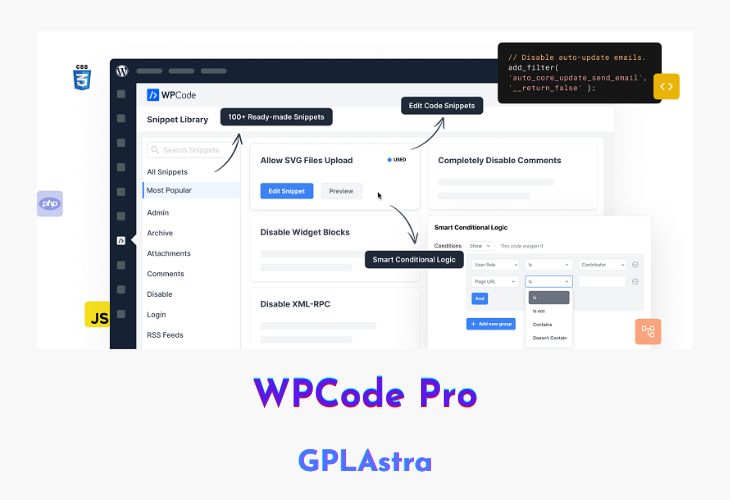
WPCode Pro is a powerful and easy-to-use WordPress snippet plugin that allows you to add custom functionality to your site with ease. With over 100+ expert-approved snippets available in its ready-made library, and support for custom PHP, JS, CSS, HTML, Text, and other types of custom code snippets, WPCode Pro is a one-stop solution for adding custom features to your website.
| Name | WPCode Pro |
| Type | Plugin |
| Version | 2.3.4 |
| File Name | wpcode-premium |
| File Type | rar (Archive, please extract before use) |
| File Host | mediafire.com | Mirror |
| Updated On: | 2 weeks ago |
Core Features of WPCode Pro Plugin
- Ready-made Snippets Library: Access over 100+ expert-approved snippets to add custom WordPress functionality and save time.
- Custom Code Snippets: Enjoy full support for custom PHP, JS, CSS, HTML, Text, and other types of custom code snippets to add custom features.
- Smart Conditional Logic: Load code snippets only when it matches specific conditions such as logged-in user, specific page URL, etc.
- Advanced Auto-Insert Locations: Automate the running of code snippets everywhere or choose from options like before post content, only in the header, etc.
- Global Header & Footer Scripts: Easily add sitewide header & footer scripts, meta tags, and other conversion pixels on your site.
- Safe Error Handling: Prevent common code errors when adding custom snippets to ensure you never break your site.
- WordPress Code Generators: Safely create custom code snippets by simply filling out a form without having to worry about the code.
- Ecommerce Conversion Pixels: Add conversion pixels for WooCommerce and Easy Digital Downloads using precise locations and rules.
- Dynamic Content Elements: Reuse content across your site with custom shortcodes in an easy-to-use interface, making content updates a breeze.
- Reduce the Number of Plugins: Replace plugins with lightweight snippets from our library to reduce bloat and improve performance.
- Save Snippets in Cloud: Your snippets can be safely saved in your private cloud and reused across all the websites you manage with ease.
- Easy Code Management: Never worry about losing a snippet or making a mistake again when using WPCode to manage all the custom code for your website.
What’s New (Changelog) in WPCode Pro v2.3.4
- New: Added a new importer for the Post Snippets plugin to make it easier to migrate your code snippets.
- Tweak: We adjusted the way the safe mode works to limit its effects on frontend urls.
Sales Page and Live Demo of WPCode Pro Plugin
https://wpcode.com/
Free Download WPCode Pro Latest Version
⚡ Premium Access
Unlock All Premium Features
Unlimited Downloads
No Restrictions
Direct Download Links
Access to Private Content
Frequently Asked Questions (FAQs):
Here are some frequently asked questions related to WPCode Pro Plugin that might help you while installing it on your WordPress site:
There is a new version of WPCode Pro available. View version 2.2.3 details.
WPCod Pro 2.2.3 Sürümünü ekler misiniz lütfen
There is a new version of WPCode Pro available. View version 2.1.10 details. Automatic update is unavailable for this plugin. lets update this plugin on site.
There is a new version of WPCode Pro available. View version 2.1.5.1 details.