WP Staging Pro v6.6.0 Plugin
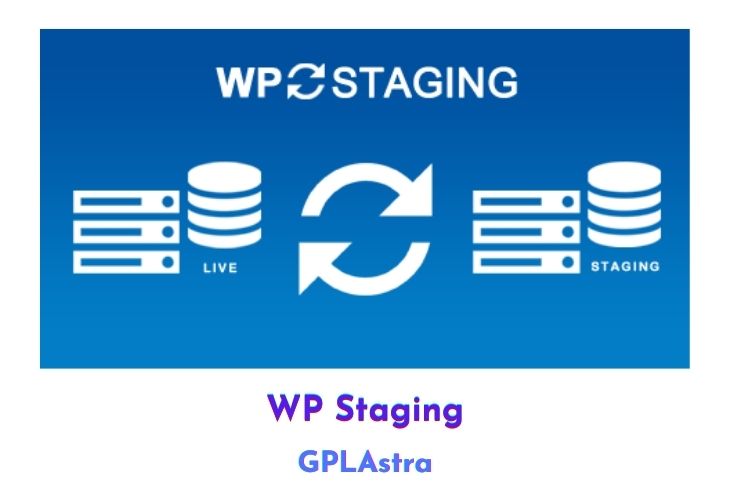
WP Staging Pro is a premium WordPress plugin that offers a convenient one-click solution for creating staging sites. A staging site is a separate, development version of your live site that you can use to test out changes, updates, or new features before making them live.
With WP Staging Pro, you can easily clone your WordPress site and create a staging version with just one click. Once you’ve made your changes on the staging site, you can then use the plugin to easily copy them over to your live site, giving you the ability to test and preview changes before making them visible to your visitors. This is a useful tool for website administrators who want to ensure that updates and changes to their site are thoroughly tested before going live.
| Name | WP Staging Pro |
| Type | Plugin |
| Version | 6.6.0 |
| File Name | wp-staging-pro |
| File Type | zip (Installable Archive) |
| File Host | mediafire.com | Mirror |
| Updated On: | 2 weeks ago |
Core Features of WP Staging Pro Plugin
- Copy the database and files from the staging site to the live site with one click.
- Exclude specific database tables and folders from the copy process.
- Fast cloning process, even for large websites.
- User roles authentication to ensure that only authorized users have access to the staging site.
- Simple to use, with a user-friendly interface.
- Pushes all modified data and files from the staging site to the live site in an easy and efficient manner.
What’s New (Changelog) in WP Staging Pro v6.6.0
= v6.6.0 =
* New: Introduce Remote Sync to pull data from a remote site. (Pro) #4596
* New: Compatible up to WordPress 6.9.1
* New: Allow staging site creation in wp-content/wp-staging-sites when root folder is not writable. #4785
* New: Add UI component system for more consistent and polished styling. #4837
* New: Add confetti celebration when creating a staging site or backup for the first time. #4803
* New: Add smooth shrink-to-dock animation when dismissing the CLI banner. #4840
* New: Redesign the license page with a modern look and updated feature descriptions. #4774
* Enh: Improve backup file validation performance by processing smaller files in memory. #4695
* Enh: Remove the "Check Directory Size" setting to simplify the settings page. #4715
* Enh: Simplify CLI integration Step 3 to use a single restore command with the --from flag. #4829
* Fix: Allow saving cloud storage settings even when the connection has not been tested yet, with a clear warning. (Pro) #4575
* Fix: Resolve CI cache conflict between Pro and Basic builds. #4868
* Fix: Resolve backup restore failure caused by empty chunk size. #4672
* Fix: License text in CLI banner was unreadable in dark mode due to incorrect text color. #4791
* Fix: Fully remove cloud storage settings on logout/revoke and clearly inform users before deletion. (Pro) #4758
* Fix: Preserve plugin settings during staging site updates, creation, and reset. #4744
* Fix: Sort backups by creation date in CLI integration Step 3. #4859
* Fix: Clean up stale CSS files during asset build process. #4853
* Fix: Correct broken footer layout on the FAQ card. #4831
* UX: Fix typo in the staging site update warning dialog. #4792
* UX: Improve backup page loading speed with parallel requests and better error handling. #4817
* UX: Improve loading states with skeleton placeholders, less blank space on the backup page, and shorter loading bar timeout. #4815
* UX: Redesign the System Info page with a cleaner layout and improved usability. #4746
* Dev: Add PHPCS rule to detect accidental double dollar signs ($$) as potential typos. #4645
* Dev: Add critical warning in CLAUDE.md to never push directly to master. #4857
* Dev: Add Tailwind CSS to streamline UI development. #4775
* Dev: Auto-copy built CSS/JS assets to dist folders after running make assets. #4847
* Dev: Consolidate duplicate license-checking logic in CLI integration notice. #4844
* Dev: Fix Playwright UI command (make e2e_playwright_ui) not working on macOS. #4760
* Dev: Fix Playwright UI command (make e2e_playwright_ui) not working on macOS. #4765
* Dev: Fix incremental asset builds skipping rebuild after a failed build. #4851
* Dev: Fix missing sanitizeArrayString call and resolve "Staging page container not found" error on non-staging pages. #4809
* Dev: Improve sanitizeArrayString to handle multidimensional arrays recursively. #4802
* Dev: Fix missing semicolons in nginx Docker config files. #4757
* Dev: Prepare PUSH for refactoring. #4701
* Dev: Remove flaky email notification test in backup Playwright suite. #4750
* Dev: Update cloud backup Dropbox Refresh Token. #4793
* Dev: Update ESLint configuration to automatically fix linting issues. #4731
* Dev: Update ESLint config for improved JavaScript formatting. #4708
* Dev: Improve code readability by using positive variable names. #3675
Sales Page and Live Demo of WP Staging Pro Plugin
https://wp-staging.com/
Free Download WP Staging Pro Latest Version
⚡ Premium Access
Unlock All Premium Features
Unlimited Downloads
No Restrictions
Direct Download Links
Access to Private Content
Frequently Asked Questions (FAQs):
Here are some frequently asked questions related to WP Staging Pro Plugin that might help you while installing it on your WordPress site:
Please, update to latest version.