Webtofee Import Export for WooCommerce v1.3.6 Plugin
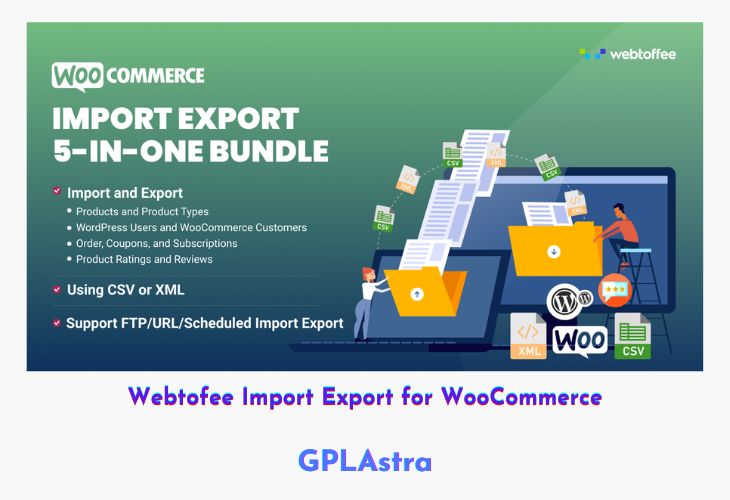
WebToffee Import Export Suite for WooCommerce is a comprehensive plugin designed to simplify the migration, import, and export of WooCommerce data. It allows store owners to efficiently manage products, orders, coupons, subscriptions, users, and more using CSV, XML, TSV, or Excel files. Trusted by over 1.8 million websites, this plugin ensures quick, hassle-free data handling while maintaining compatibility with all types of WooCommerce products.
With advanced filtering, bulk update capabilities, scheduling options, and support for custom metadata and product images, WebToffee provides a seamless solution for WooCommerce data management. Integration with ChatGPT API allows automatic generation of product descriptions, saving time and improving workflow efficiency for online stores of all sizes.
| Name | Webtofee Import Export for WooCommerce |
| Type | Plugin |
| Version | 1.3.6 |
| File Name | wt-import-export-for-woo |
| File Type | rar (Archive, please extract before use) |
| File Host | mediafire.com | Mirror |
| Updated On: | 2 months ago |
Core Features of Webtofee Import Export for WooCommerce Plugin
- WooCommerce Data Import & Export: Manage products, orders, coupons, subscriptions, users, and reviews efficiently.
- Support for All Product Types: Compatible with simple, variable, grouped, affiliate, custom, and subscription products.
- Multiple File Formats: Import/export using CSV, XML, TSV, and Excel files.
- Advanced Export Filters: Export data by product type, category, date range, and more.
- Bulk Import & Updates: Add new entries or update existing store data in bulk.
- Scheduling Automation: Schedule import/export tasks using secure FTP or SFTP connections.
- Custom Metadata & Product Images: Import/export images, categories, tags, and custom fields.
- Quick & Advanced Methods: Choose speed or detailed control for your import/export process.
- Auto-Generate Product Descriptions: Use ChatGPT API to automatically generate descriptions for products lacking them.
- Easy Migration Between Stores: Hassle-free transfer of WooCommerce data between stores or websites.
- Subscription Support: One-year updates and support included, with renewal flexibility.
- Trusted & Rated: Over 200,000 downloads with a 4.7/5 user rating.
What’s New (Changelog) in Webtofee Import Export for WooCommerce v1.3.6
2025.10.01 - v1.3.6
[Improvement] — Enhanced UI/UX for better usability, added greater flexibility, and introduced additional filters.
[Add] – Option to delete stored files, manually or via auto-delete.
[Tweak] – Data stored in the DB converted from serialized to JSON format.
[Compatibility] – Tested OK with WooCommerce 10.2.2
Sales Page and Live Demo of Webtofee Import Export for WooCommerce Plugin
https://www.webtoffee.com/product/woocommerce-import-export-suite/
Free Download Webtofee Import Export for WooCommerce Latest Version
⚡ Premium Access
Unlock All Premium Features
Unlimited Downloads
No Restrictions
Direct Download Links
Access to Private Content
Frequently Asked Questions (FAQs):
Here are some frequently asked questions related to Webtofee Import Export for WooCommerce Plugin that might help you while installing it on your WordPress site: