JetAppointments v2.3.2 WordPress Plugin
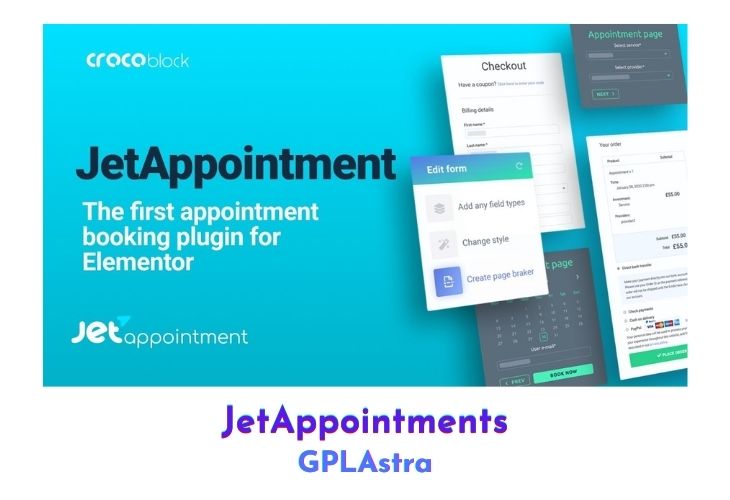
JetAppointment is a plugin for WordPress that allows users to manage booking appointments and hourly services through their WordPress website. It is designed to make it easy for businesses to schedule appointments and events, and for customers to book those appointments online.
Some features of JetAppointment may include the ability to set up customizable booking forms, manage multiple services and appointments, accept payments online, and send automated email and SMS reminders to customers. It is a powerful tool for businesses that want to streamline their appointment booking process and make it more convenient for their customers to schedule appointments.
| Name | JetAppointments |
| Type | WordPress Plugin |
| Version | 2.3.2 |
| File Name | jet-appointments-booking |
| File Type | zip (Installable Archive) |
| File Host | mediafire.com | Mirror |
| Updated On: | 3 weeks ago |
Core Features of JetAppointments WordPress Plugin
- Customizable booking forms: Allows you to create and customize the appearance and fields of your booking form to fit the needs of your business.
- Multiple services and appointments: Allows you to offer a range of services or appointments, and manage them all in one place.
- Accept payments online: Allows you to accept payments for appointments or services through the booking form, using a variety of payment gateways.
- Automatic email and SMS reminders: Sends automatic reminders to customers via email or SMS to help reduce no-shows and ensure that appointments are kept.
- Calendar integration: Integrates with your Google Calendar or other calendar software, so you can view and manage all of your appointments in one place.
- Responsive design: Optimized for use on mobile devices, so customers can book appointments on the go.
- Customizable appearance: Allows you to customize the appearance of the booking form to match the look and feel of your website.
- Multilingual support: Supports multiple languages, so you can offer the booking form in the language of your customers.
- Easy setup: Easy to install and set up, with clear instructions and a user-friendly interface.
What’s New (Changelog) in JetAppointments v2.3.2
v2.3.2
* ADD: JetFormBuilder `Is appointment allowed` server-side validation callback;
* ADD: Workflows `Scheduled after appointment` schedule option;
* ADD: Google Calendar Integration `Send calendar invitations` option;
* ADD: Form styles for appointments list;
* FIX: Translations of some strings were unavailable.
Sales Page and Live Demo of JetAppointments WordPress Plugin
https://crocoblock.com/plugins/jetappointment/
Free Download JetAppointments Latest Version
⚡ Premium Access
Unlock All Premium Features
Unlimited Downloads
No Restrictions
Direct Download Links
Access to Private Content
Frequently Asked Questions (FAQs):
Here are some frequently asked questions related to JetAppointments WordPress Plugin that might help you while installing it on your WordPress site: