Solid Backups (BackupBuddy) v9.1.16 Plugin
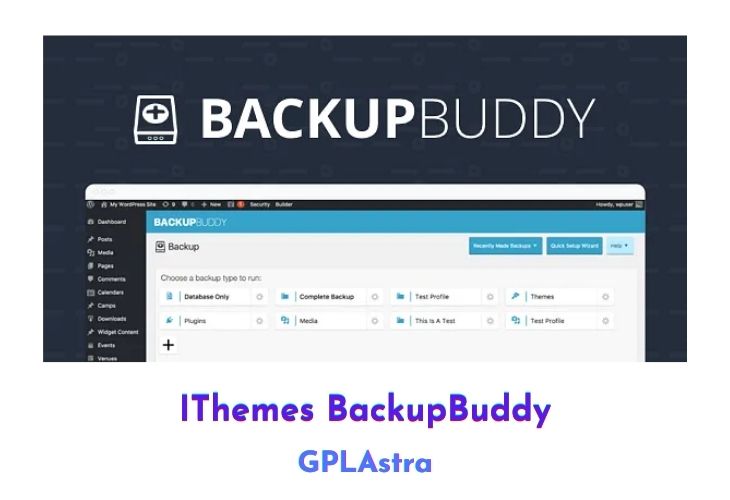
BackupBuddy is a reliable and trusted WordPress plugin that helps you protect your online work by backing up your WordPress website. It is the original WordPress backup plugin, designed to meet the need for a solid backup solution for WordPress sites. Without a backup, your WordPress website could be lost forever due to server crashes, hacks, malware, user error, deleted files, or running bad commands.
It helps you avoid this risk by providing a comprehensive backup solution that backs up your entire WordPress site and allows you to schedule backups, send and store backups remotely off-site, and quickly and easily restore your WordPress site from a backup. If you want to protect your WordPress website and ensure that you can quickly and easily recover it in the event of any issues, BackupBuddy is the plugin you need.
| Name | Solid Backups (BackupBuddy) |
| Type | Plugin |
| Version | 9.1.16 |
| File Name | backupbuddy |
| File Type | zip (Installable Archive) |
| File Host | mediafire.com | Mirror |
| Updated On: | 10 months ago |
Core Features of Solid Backups (BackupBuddy) Plugin
- Full site backups: BackupBuddy backs up your entire WordPress site, including your database, files, and media.
- Scheduled backups: You can schedule regular backups to ensure that you always have a current copy of your site.
- Remote storage: You can send and store your backups remotely off-site to ensure that you have a secure and reliable backup in case of any issues.
- Easy restoration: The plugin provides a simple process for quickly and easily restoring your WordPress site from a backup.
- Custom backup profiles: You can create custom backup profiles to specify which parts of your site you want to include in your backups.
- Backup import/export: You can import and export your backups to and from different WordPress sites.
- Multisite support: BackupBuddy supports multisite installations and allows you to manage backups for multiple sites from a single dashboard.
- Website migration: You can use the plugin to move your WordPress site to a new host or domain.
- User-friendly interface: The plugin has a user-friendly interface that makes it easy to set up and manage your backups.
- Top-rated support: BackupBuddy has a team of experienced support professionals who are available to help you with any questions or issues you may have.
What’s New (Changelog) in Solid Backups (BackupBuddy) v9.1.16
9.1.16 - 2025-04-29 - Timothy Jacobs
Security: Update StellarWP Telemetry library to improve authorization checks.
Sales Page and Live Demo of Solid Backups (BackupBuddy) Plugin
https://ithemes.com/purchase/backupbuddy/
Free Download Solid Backups (BackupBuddy) Latest Version
⚡ Premium Access
Unlock All Premium Features
Unlimited Downloads
No Restrictions
Direct Download Links
Access to Private Content
Frequently Asked Questions (FAQs):
Here are some frequently asked questions related to Solid Backups (BackupBuddy) Plugin that might help you while installing it on your WordPress site: