Export Order Items Pro v2.1.36 Plugin
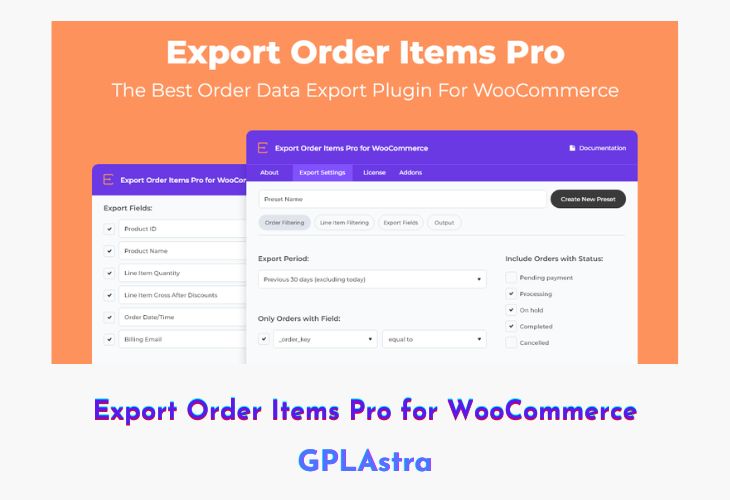
Export Order Items Pro for WooCommerce is a robust and flexible reporting solution that allows store owners to export detailed order information with precision and ease. Perfect for managing accounting, fulfillment, and performance analytics, this plugin enables you to generate tailored reports using advanced sorting and filtering options. With support for multiple export formats, it ensures compatibility with spreadsheets, accounting tools, and external systems.
The plugin is built to save time for WooCommerce store managers by automating and simplifying the process of data extraction. You can create and save export presets for recurring tasks, filter by order status, category, product, or user role, and even customize the layout and structure of your exported files. Export Order Items Pro offers all the flexibility you need for professional reporting without requiring any coding knowledge.
| Name | Export Order Items Pro |
| Type | Plugin |
| Version | 2.1.36 |
| File Name | hm-export-order-items-pro |
| File Type | zip (Installable Archive) |
| File Host | mediafire.com | Mirror |
| Updated On: | 4 months ago |
Core Features of Export Order Items Pro Plugin
- Advanced Sorting Options: Sort and filter order data using conditional logic and dynamic fields.
- Date Range Selector: Export orders based on preset ranges or custom start and end dates.
- Saved Presets: Store export settings for future reuse to streamline report generation.
- Customizable Data Fields: Select which data fields appear in the exported file, including custom fields.
- Order Status Filter: Filter exports by status such as Pending, Processing, Completed, or Cancelled.
- Category and Product Filters: Export orders by product ID, category, or tag for targeted reporting.
- Include/Exclude Options: Choose whether to display free items, refunds, or shipping details.
- User Role Exports: Generate reports based on specific customer roles or segments.
- Dynamic Field Names: Rename and reorder columns to match your preferred layout.
- Multiple Export Formats: Export in CSV, CSV-ASCII, XLS, XLSX, HTML, or enhanced HTML formats.
- Report Layout Customization: Adjust decimal display, add dynamic titles, and include additional rows.
- Line Item and Variation Support: Export detailed order item and product variation information.
- Conditional Sorting: Organize data automatically based on custom conditions.
- Time-Saving Automation: Create and reuse report templates for faster order management.
- Fully Compatible with WooCommerce: Seamlessly integrates into existing WooCommerce workflows.
What’s New (Changelog) in Export Order Items Pro v2.1.36
v2.1.36 October 9, 2025
- Fix: allow empty selection in order shipping method filter
Sales Page and Live Demo of Export Order Items Pro Plugin
https://aspengrovestudios.com/product/export-order-items-pro-for-woocommerce/
Free Download Export Order Items Pro Latest Version
⚡ Premium Access
Unlock All Premium Features
Unlimited Downloads
No Restrictions
Direct Download Links
Access to Private Content
Frequently Asked Questions (FAQs):
Here are some frequently asked questions related to Export Order Items Pro Plugin that might help you while installing it on your WordPress site: