WooCommerce Support Ticket System v18.0 Plugin
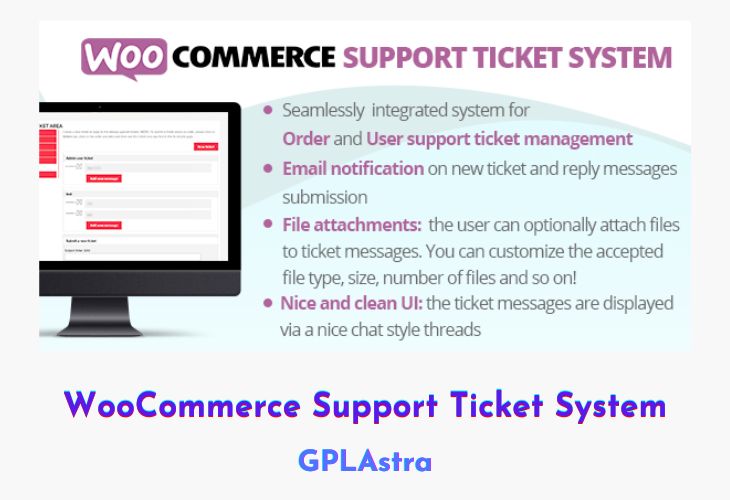
WooCommerce Support Ticket System (WCSTS) is a powerful and seamless extension for WooCommerce that introduces a complete support ticketing system into your store. With WCSTS, store owners can efficiently manage customer queries and issues related to orders and general account activity directly from the WordPress backend. This improves customer satisfaction by offering organized, traceable, and professional support experiences for WooCommerce-powered shops.
The plugin supports three distinct types of tickets: Order Tickets (linked to specific customer orders), User Tickets (linked to general customer issues), and a new Pay Per Ticket model that allows monetization of support queries. Tickets can be submitted directly from the frontend by users, while admins benefit from a dedicated backend interface to review, respond, and track ticket status. The system also integrates email notifications, ensuring both customers and staff stay informed throughout the support process.
| Name | WooCommerce Support Ticket System |
| Type | Plugin |
| Version | 18.0 |
| File Name | woocommerce-support-ticket-system |
| File Type | zip (Installable Archive) |
| File Host | mediafire.com | Mirror |
| Updated On: | 7 months ago |
Core Features of WooCommerce Support Ticket System Plugin
- Seamless WooCommerce Integration: Fully integrates with WooCommerce for unified support ticket handling
- Three Ticket Types: Manage Order, User, and Pay Per Ticket support requests with tailored workflows
- Frontend Ticket Submission: Customers can easily open support tickets directly from their account or order pages
- Backend Ticket Management: Admins can track, manage, and respond to tickets from a dedicated backend interface
- Email Notifications: Automatic email updates keep both customers and admins informed on ticket activity
- Order Ticket Support: Link tickets directly to WooCommerce orders for precise issue tracking
- User Ticket Support: Handle general inquiries or account issues unrelated to specific orders
- Pay Per Ticket Option: Monetize support by charging users for ticket submission (ideal for premium support)
- Admin Reply System: Admins can respond to tickets directly through the dashboard interface
- Ticket Prioritization: Optional settings to tag and filter tickets by urgency or type
- Customizable Ticket Forms: Tailor input fields and ticket forms to match your store’s needs
- Shortcodes Available: Display ticket forms and lists using simple shortcodes anywhere on the site
- Multi-Language Ready: Compatible with translation plugins for international stores
- Lightweight and Fast: Designed to work efficiently without affecting WooCommerce performance
What’s New (Changelog) in WooCommerce Support Ticket System v18.0
= 18.0 - 07.04.25 =
* Typo on automatic ticket reply option description
Sales Page and Live Demo of WooCommerce Support Ticket System Plugin
https://codecanyon.net/item/woocommerce-support-ticket-system/17930050
Free Download WooCommerce Support Ticket System Latest Version
⚡ Premium Access
Unlock All Premium Features
Unlimited Downloads
No Restrictions
Direct Download Links
Access to Private Content
Frequently Asked Questions (FAQs):
Here are some frequently asked questions related to WooCommerce Support Ticket System Plugin that might help you while installing it on your WordPress site:


