WooCommerce Shipping Tracking v42.2 Plugin
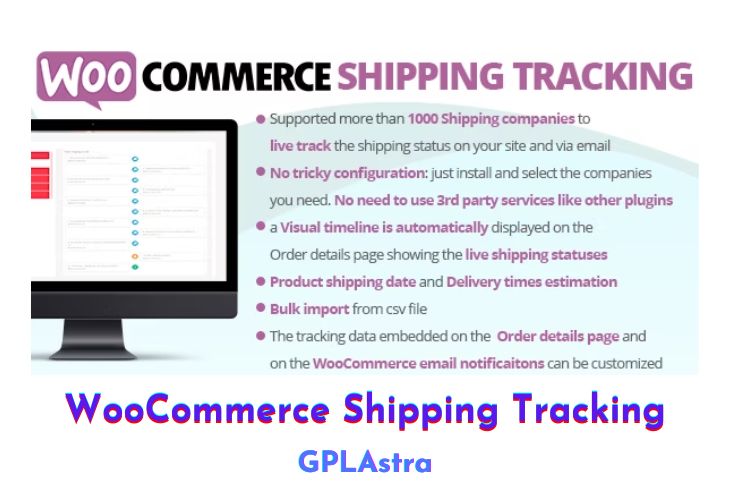
WooCommerce Shipping Tracking (WCST) enables your customers to easily track their orders by associating shipping companies and tracking numbers with each order. It displays tracking information (company URL and tracking code) directly in the “Order Completed” email and “View Order” page, allowing customers to click on the provided link and track their orders effortlessly. With features like custom shipping company definitions, multiple tracking codes per order, dispatch date and custom text fields, customizable email and order details snippets, and shipment progress tracking with a timeline, WCST offers a comprehensive solution for managing and sharing shipping information.
| Name | WooCommerce Shipping Tracking |
| Type | Plugin |
| Version | 42.2 |
| File Name | woocommerce-shipping-tracking |
| File Type | zip (Installable Archive) |
| File Host | mediafire.com | Mirror |
| Updated On: | 8 months ago |
Core Features of WooCommerce Shipping Tracking Plugin
- Define your own custom shipping companies (name and tracking URL)
- Associate multiple tracking codes and shipping companies per order
- Specify dispatch date and custom text for each shipping entry
- Customize HTML snippets for email templates and order details page
- Show shipment progress status with a timeline using shortcode
- Display tracking info in all outgoing WooCommerce emails (based on order status)
- Embed tracking info in order details page
- Send email notifications for selected tracking codes
- Support for Germanized Pro invoice emails
- Delivery date and time range fields for customer input
- Customizable delivery date/time field labels and descriptions (multi-language support)
- Delivery date/time included in WooCommerce emails
- Date selection considers product shipping time and selected shipping method
- Bulk import tracking info from CSV files
- Import order status, email notifications, dispatch date, custom text, and tracking info from CSV
- Compatible with WooCommerce and easy to set up
- Regular updates and maintenance
What’s New (Changelog) in WooCommerce Shipping Tracking v42.2
* Minor bugfix
* Internal libraries update
Sales Page and Live Demo of WooCommerce Shipping Tracking Plugin
https://codecanyon.net/item/woocommerce-shipping-tracking/11363158
Free Download WooCommerce Shipping Tracking Latest Version
⚡ Premium Access
Unlock All Premium Features
Unlimited Downloads
No Restrictions
Direct Download Links
Access to Private Content
Frequently Asked Questions (FAQs):
Here are some frequently asked questions related to WooCommerce Shipping Tracking Plugin that might help you while installing it on your WordPress site:


