WooCommerce License Manager v7.2.0 Plugin
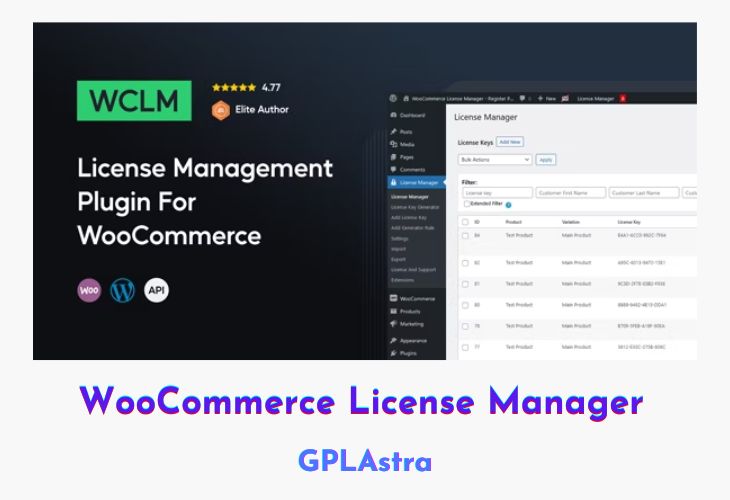
WooCommerce License Manager is a versatile WordPress plugin designed to streamline the process of selling and delivering license keys, pin codes, gift cards, or licensing digital products with predefined or automatically generated license keys. This plugin caters to businesses that offer products requiring license keys, such as software, games, or any other digital offerings that necessitate a unique key for activation or access. With WooCommerce License Manager, you can easily manage and deliver these license keys to your customers, ensuring a seamless and hassle-free purchasing experience.
The plugin allows you to add license keys manually or import them from TXT or CSV files, assigning them to specific products. Additionally, you can include optional details like expiration dates or validity periods for each license key. The license key text field supports multi-line text and HTML code, enabling you to present the keys in a visually appealing manner, such as clickable links in emails, enhancing the overall user experience for your customers.
| Name | WooCommerce License Manager |
| Type | Plugin |
| Version | 7.2.0 |
| File Name | FS-License-Manager |
| File Type | zip (Installable Archive) |
| File Host | mediafire.com | Mirror |
| Updated On: | 2 weeks ago |
Core Features of WooCommerce License Manager Plugin
- Sell license keys, pin codes, gift cards, or license digital products
- Manually add license keys one by one
- Import license keys from TXT or CSV files
- Assign license keys to specific products
- Include additional details like expiration dates or validity periods
- Multi-line text and HTML support for license key text fields
- Clickable license key links in emails
- Automatic license key generation
- Customizable license key format (alphanumeric, length, pattern)
- Assign multiple license keys to a single product
- License key delivery via emails or downloadable files
- Integration with WooCommerce checkout and order management
- License key tracking and management
- Search and filter license keys
- License key usage reports and analytics
- License key expiration notifications
- Bulk license key activation/deactivation
- License key regeneration or reset
- Role-based access control for license key management
- GDPR and privacy compliance
- Comprehensive documentation and support
What’s New (Changelog) in WooCommerce License Manager v7.2.0
- UI Revamp
- Added the option to delete an assigned license key from the order.
Sales Page and Live Demo of WooCommerce License Manager Plugin
https://codecanyon.net/item/woocommerce-license-manager/16636748
Free Download WooCommerce License Manager Latest Version
⚡ Premium Access
Unlock All Premium Features
Unlimited Downloads
No Restrictions
Direct Download Links
Access to Private Content
Frequently Asked Questions (FAQs):
Here are some frequently asked questions related to WooCommerce License Manager Plugin that might help you while installing it on your WordPress site:


