Point of Sale System v6.6.0 Plugin
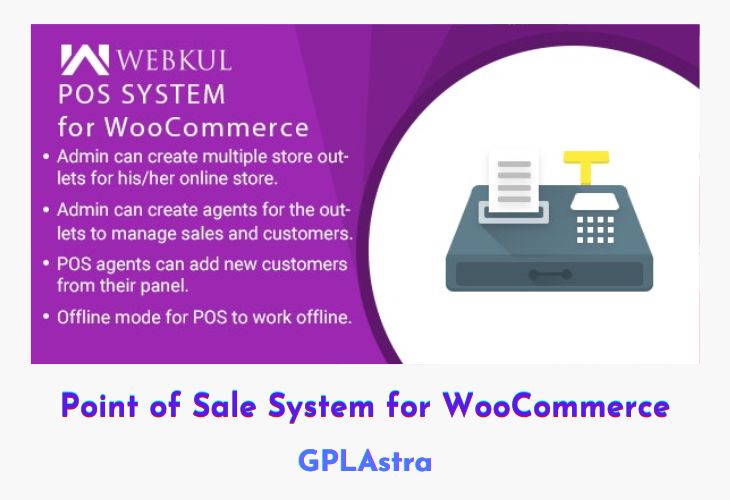
Point of Sale System for WooCommerce is a complete solution for store owners who want to manage both their online WooCommerce store and physical retail outlets from a single platform. It introduces a dedicated POS front-end where admins can assign store agents to handle in-store sales, customers, and orders efficiently. This unified approach helps maintain consistent inventory, pricing, and customer data across online and offline channels, making day-to-day store operations smoother and more organized.
The POS system supports both online and offline modes, ensuring uninterrupted sales even when internet connectivity is unavailable. Once the system goes back online, all offline sales and customer data are automatically synchronized with the main WooCommerce store. With additional POS extensions for discounts, barcode-based inventory, and order returns, this solution plays a crucial role in boosting sales, improving customer experience, and simplifying retail management for growing businesses.
| Name | Point of Sale System |
| Type | Plugin |
| Version | 6.6.0 |
| File Name | woo-point-of-sale |
| File Type | zip (Installable Archive) |
| File Host | mediafire.com | Mirror |
| Updated On: | 2 months ago |
Core Features of Point of Sale System Plugin
- Online & Offline POS Mode: Continue selling without internet and sync all sales and customer data automatically when back online
- Dedicated POS Front-End: Easy-to-use interface for physical store operations linked directly to WooCommerce
- Store Agent Management: Assign specific staff members to manage sales and customers at individual physical stores
- Centralized Inventory Sync: Keep product stock updated across online and offline stores in real time
- POS Price Rules & Discounts: Apply special discounts to selected products or the entire store with clear price display
- Barcode-Based Inventory Management: Assign and manage product inventory by scanning barcodes directly from the backend
- POS Order Return & Refunds: Process returns easily with automatic inventory updates and order status changes
- Customer Data Synchronization: Maintain a unified customer database across POS and online orders
- Faster Production Version: Optimized production-ready plugin for efficient performance on live stores
- WooCommerce Integration: Seamlessly works with your existing WooCommerce setup for unified store management
What’s New (Changelog) in Point of Sale System v6.6.0
v6.6.0 (2025-10-14)
Added: Multisite Compatibility into POS.
Sales Page and Live Demo of Point of Sale System Plugin
https://codecanyon.net/item/wordpress-woocommerce-pos-system-point-of-sale/21254976
Free Download Point of Sale System Latest Version
⚡ Premium Access
Unlock All Premium Features
Unlimited Downloads
No Restrictions
Direct Download Links
Access to Private Content
Frequently Asked Questions (FAQs):
Here are some frequently asked questions related to Point of Sale System Plugin that might help you while installing it on your WordPress site:


