Openpos v8.2.0 WP Plugin
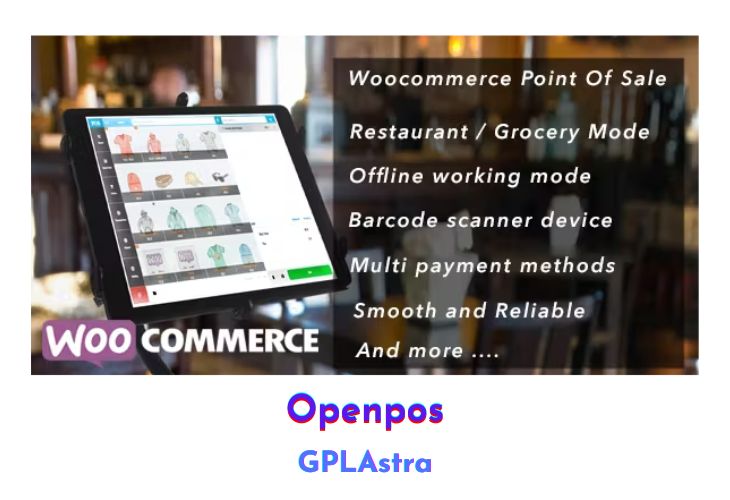
If you’re looking for a solution to synchronize data between your online website and your local store, or if you need a quick solution to manage your cafe or restaurant, OpenPOS is a must-have plugin. It’s a complete point of sale system (POS) plugin for WooCommerce and WordPress, offering a wide range of features to streamline your operations.
With OpenPOS, you can enjoy real-time synchronization of table order data between waiters’ phones/tablets and the kitchen’s devices. It supports cafe/restaurant mode with table management, merging tables, and transferring tables. Additionally, it offers a general/grocery mode with customer pole display, making it suitable for various business types. OpenPOS also includes robust inventory management capabilities, such as stock transfers, stock adjustments, and stock overview.
| Name | Openpos |
| Type | WP Plugin |
| Version | 8.2.0 |
| File Name | woocommerce-openpos |
| File Type | rar (Archive, please extract before use) |
| File Host | mediafire.com | Mirror |
| Updated On: | 1 month ago |
Core Features of Openpos WP Plugin
- No monthly fees
- Cafe/Restaurant mode with table management, merge table, transfer table, and Kitchen View Screen
- Real-time sync of table order data between waiters’ devices and kitchen devices
- General/Grocery mode with customer pole display
- Multi-Warehouse (Outlets) support
- Inventory Management: Stock transfer, Stock adjustment, Stock Overview
- Multi Registers
- Support for all types of barcode scanner devices
- Add products by barcode scanning or search by name/SKU
- Support for decimal stock and negative quantities
- Rounding currency
- Order notes and item notes
- Discounts and coupons (item discounts and cart discounts)
- Multi-cart checkout with saved cart function
- User management for allowing login to POS panel
- Receipt and barcode label printing
- Print and email receipts
- Cash management
- Checkout with multiple payment methods and split payments
- Offline mode support
- Transaction and sales reports
- Integration with WooCommerce Product Add-Ons and WooCommerce Product Bundles
- Manage active login sessions with cashier name, location, and IP address
- Camera barcode/QRcode scanner with HTTPS support
- Logoff function for cashiers
- Checkout with default or extended WooCommerce gateways
- Refund, partial refund, full exchange, and partial exchange
- Easy code extension and management
What’s New (Changelog) in Openpos v8.2.0
Changelog Not Found!
Sales Page and Live Demo of Openpos WP Plugin
https://codecanyon.net/item/openpos-a-complete-pos-plugins-for-woocomerce/22613341
Free Download Openpos Latest Version
⚡ Premium Access
Unlock All Premium Features
Unlimited Downloads
No Restrictions
Direct Download Links
Access to Private Content
Frequently Asked Questions (FAQs):
Here are some frequently asked questions related to Openpos WP Plugin that might help you while installing it on your WordPress site:


