MultiLoca v4.2.14 WordPress Plugin
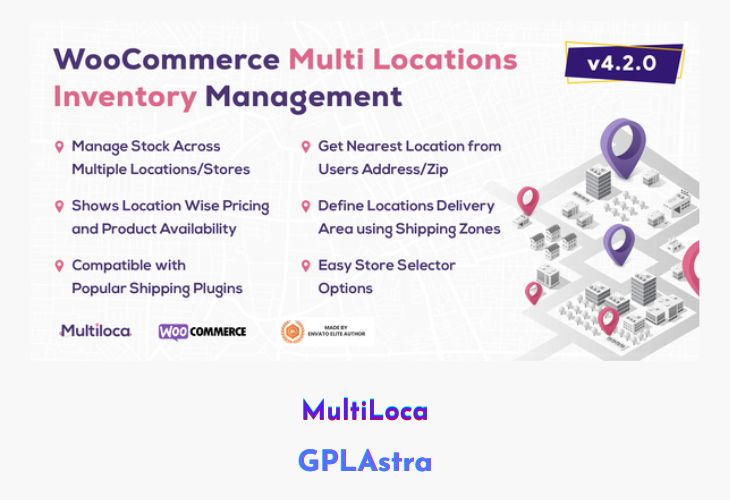
MultiLoca – WooCommerce Multi Locations Inventory Management is a smart inventory control solution that allows you to manage product stock across multiple warehouses or physical store locations. Designed specifically for WooCommerce, this plugin helps online retailers efficiently distribute and track inventory, ensuring customers always see accurate stock availability and pricing based on their geographic location. Whether your business operates from several warehouses, retail stores, or regional fulfillment centers, MultiLoca ensures smooth order management and optimized delivery operations.
The plugin automatically detects the nearest product location to the customer, helping reduce shipping costs and delivery times. It displays real-time stock levels and dynamic pricing according to each location, ensuring transparency and better customer experience. MultiLoca is perfect for global and multi-branch businesses looking to enhance logistics, maintain precise inventory records, and serve customers from the most efficient source.
| Name | MultiLoca |
| Type | WordPress Plugin |
| Version | 4.2.14 |
| File Name | WooCommerce-Multi-Locations-Inventory-Management |
| File Type | zip (Installable Archive) |
| File Host | mediafire.com | Mirror |
| Updated On: | 2 weeks ago |
Core Features of MultiLoca WordPress Plugin
- Multi-Location Stock Management: Manage product inventory across multiple warehouses or retail outlets.
- Automatic Location Detection: Identifies the customer’s nearest warehouse for faster fulfillment.
- Location-Based Product Availability: Displays stock status based on selected or detected location.
- Dynamic Pricing by Location: Adjusts product prices depending on the warehouse or regional setup.
- Centralized Admin Control: Manage and update all inventory data from a single WooCommerce dashboard.
- Real-Time Stock Updates: Keeps inventory synced automatically across all locations.
- Improved Order Routing: Automatically assigns orders to the nearest or most stocked location.
- Enhanced Customer Experience: Reduces delivery time and ensures customers see accurate product data.
- Supports Global Shipping Models: Ideal for businesses shipping from multiple international or regional warehouses.
- Scalable System: Easily add new locations and manage expanding store networks.
- Compatible with WooCommerce: Seamless integration with existing WooCommerce products and workflows.
What’s New (Changelog) in MultiLoca v4.2.14
New: Support for Cloudflare IP geolocation to identify visitor locations based on their IP addresses.
New: Added location-wise coupon functionality.
New: Location-wise Google My Business rating sync.
New: Stock Locator Feature in Map to locate product locations on the map.
New: Redesigned Location Manager dashboard.
New: Location SEO optimization.
New: Multiple address handling and saving at the user level.
Sales Page and Live Demo of MultiLoca WordPress Plugin
https://codecanyon.net/item/woocommerce-multi-locations-inventory-management/28949586
Free Download MultiLoca Latest Version
⚡ Premium Access
Unlock All Premium Features
Unlimited Downloads
No Restrictions
Direct Download Links
Access to Private Content
Frequently Asked Questions (FAQs):
Here are some frequently asked questions related to MultiLoca WordPress Plugin that might help you while installing it on your WordPress site:


