Advanced Themer for Bricks v3.3.13 Plugin
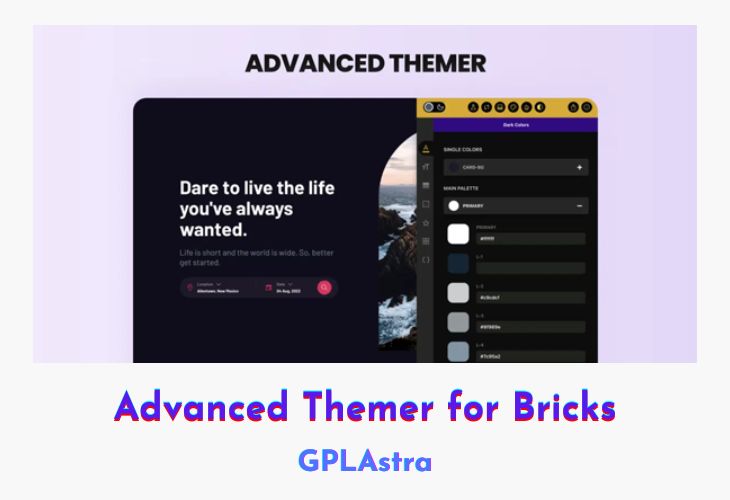
Advanced Themer for Bricks is a powerful addon that enhances the capabilities of the Bricks page builder, providing a seamless and optimized theming experience for your WordPress websites. By taking a “no-framework” approach, this plugin ensures a sleek interface, blazing-fast speed, and amazing compatibility with third-party plugins, without the hassle of dealing with outdated dependencies.
With Advanced Themer for Bricks, you can unlock new levels of customization and flexibility, enabling you to create stunning and highly functional websites tailored to your specific needs. Whether you’re a seasoned developer or a beginner, this addon streamlines the theming process, empowering you to craft unique and engaging experiences for your visitors.
| Name | Advanced Themer for Bricks |
| Type | Plugin |
| Version | 3.3.13 |
| File Name | bricks-advanced-themer |
| File Type | zip (Installable Archive) |
| File Host | mediafire.com | Mirror |
| Updated On: | 15 hours ago |
Core Features of Advanced Themer for Bricks Plugin
- Seamless integration with the Bricks page builder
- “No-framework” approach for optimal performance and compatibility
- Sleek and intuitive interface for efficient theming
- Blazing-fast speed and optimized for performance
- Amazing compatibility with third-party plugins
- Avoid outdated dependencies and framework conflicts
- Advanced customization options for enhanced theming capabilities
- User-friendly tools for creating unique and engaging designs
- Streamlined workflow for efficient website development
- Comprehensive documentation and support resources
- Regularly updated with new features and improvements
- Developed with a focus on scalability and future-proofing
What’s New (Changelog) in Advanced Themer for Bricks v3.3.13
= v3.3.13 ( FEB 13, 2026)
* FIX: Removed PHP warnings when global colors are missing a name property in the definition object.
* FIX: AT's Grid Builder wasn't opening when clicking on the Grid Builder icon.
* FIX: The Box Shadow icon to open the corresponding modal was not being appended anymore in the builder.
* FIX: The keyboard shortcut for the Advanced CSS panel wasn't working anymore.
Sales Page and Live Demo of Advanced Themer for Bricks Plugin
https://advancedthemer.com/
Free Download Advanced Themer for Bricks Latest Version
⚡ Premium Access
Unlock All Premium Features
Unlimited Downloads
No Restrictions
Direct Download Links
Access to Private Content
Frequently Asked Questions (FAQs):
Here are some frequently asked questions related to Advanced Themer for Bricks Plugin that might help you while installing it on your WordPress site: