ASE Pro v8.4.1 WordPress Plugin
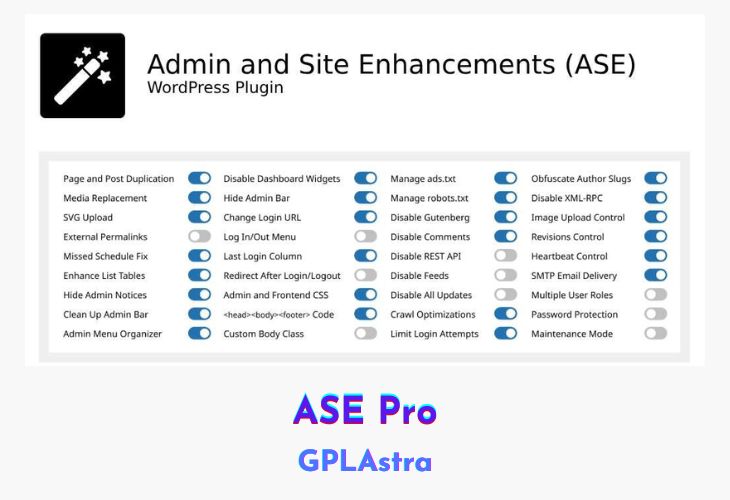
Admin and Site Enhancements (ASE) Pro is a modular and lightweight WordPress plugin designed to streamline various administrative workflows and enhance site functionalities. It consolidates the features of multiple plugins into a single, comprehensive solution, saving you time, effort, and money. ASE Pro empowers you to tailor your WordPress site effortlessly, enabling you to customize content types, manage media assets, optimize login experiences, and fine-tune administrative settings with ease.
With its extensive range of modules, ASE Pro offers a comprehensive toolset for enhancing your WordPress site’s functionality and user experience. From content management to login security, media optimization to administrative cleanup, this plugin provides a wide array of features to cater to your specific requirements. Whether you’re seeking to improve workflow efficiency, tighten security measures, or enhance the overall site performance, ASE Pro has you covered.
| Name | ASE Pro |
| Type | WordPress Plugin |
| Version | 8.4.1 |
| File Name | admin-site-enhancements-pro |
| File Type | zip (Installable Archive) |
| File Host | mediafire.com | Mirror |
| Updated On: | 2 days ago |
Core Features of ASE Pro WordPress Plugin
- Custom Content Types
- Content Duplication
- Content Order
- Media Categories
- Image Upload Control
- Media Replacement
- Login Page Customizer
- SVG Upload
- Clean Up Admin Bar
- Hide Admin Notices
- Admin Menu Organizer
- Admin Columns Manager
- Change Login URL
- Limit Login Attempts
- Disable Gutenberg
- Disable Comments
- Code Snippets Manager
- Manage ads.txt
- SMTP Email Delivery
- Password Protection
- Maintenance Mode
- And many more modules!
What’s New (Changelog) in ASE Pro v8.4.1
v8.4.1 (2026.02.23)
* **[SECURITY FIX in Free] Content Management >> Content Duplication**: fixed "Broken Access Control" vulnerability with CVSS severity "Medium (5.4)"" that could cause "Information Disclosure" as responsiblly disclosed by security researcher Jakub Herman via Pathstack. In practical terms, this for example, can allow a logged-in user with contributor role to duplicate (and then view) password-protected content created by an administrator via the admin bar duplication link of the password-protected post in the frontend.
* **[IMPROVED and FIXED in Pro] Utilities >> Form Builder**:
* **Added bulk export / import for forms** via an "Export / Import Forms" button in the forms listing page, which links to the Form Builder section in ASE settings "Export | Import" section. You can choose to export all forms, or manually select which forms to export.
* **Added bulk export / import for style templates** via an "Export / Import Style Templates" button in the forms listing page, which links to the Form Builder section in ASE settings "Export | Import" section. You can choose to export all style templates, or manually select which style templates to export.
* **Added bulk export for form entries** via an "Export Entries" button in the forms listing page, which links to the Form Builder section in ASE settings "Export | Import" section. You can choose to export entries from a particular form, and customize what entry data will be exported, set the output format (CSV, Excel or JSON) and set a data range to filter by. Props to Uli L., Richard L. and Dave P. for prompting this improvement.
* **Security hardening for the upload field** by removing trust in client-sent constraints and enforcing server-side file policy.
* **Stop recording IP address** during form submissions.
* **Fixed custom CSS classes not being output** for "Display" field types, e.g. HTML field. Props to Yan for reporting the issue.
* **[FIXED in Free and Pro] Content Management >> Content Order**: fixed layout issue in the content order page caused by CSS being overridden by the MetForm Pro plugin's CSS. Props to @once-master for prompting this fix.
* **[FIXED in Pro] Security >> CAPTCHA Protectino >> ALTCHA**: fixed a JS error in Firefox browser related to `@wordpress/interactivity` when an ALTCHA field is included in a form via the Form Builder module. Props to Yan for reporting the issue.
* **[TRANSLATION in Free and Pro]** ASE is now being translated into [38 languages](https://translate.wpase.com/):
* **Added new/improved translation** for:
* ASE Free: Updated Serbian, Turkish, Spanish (Spain), Portuguese (Brazil), Polish, Persian, Norwegian, Dutch, Danish, Azerbaijani, Albanian
* ASE Pro: Updated Norwegian. Completed Serbian (special props to [Igor E.](https://wordpress.org/support/users/igorel/)).
Sales Page and Live Demo of ASE Pro WordPress Plugin
https://www.wpase.com/
Free Download ASE Pro Latest Version
⚡ Premium Access
Unlock All Premium Features
Unlimited Downloads
No Restrictions
Direct Download Links
Access to Private Content
Frequently Asked Questions (FAQs):
Here are some frequently asked questions related to ASE Pro WordPress Plugin that might help you while installing it on your WordPress site: