BricksExtras v1.6.8 WordPress Plugin
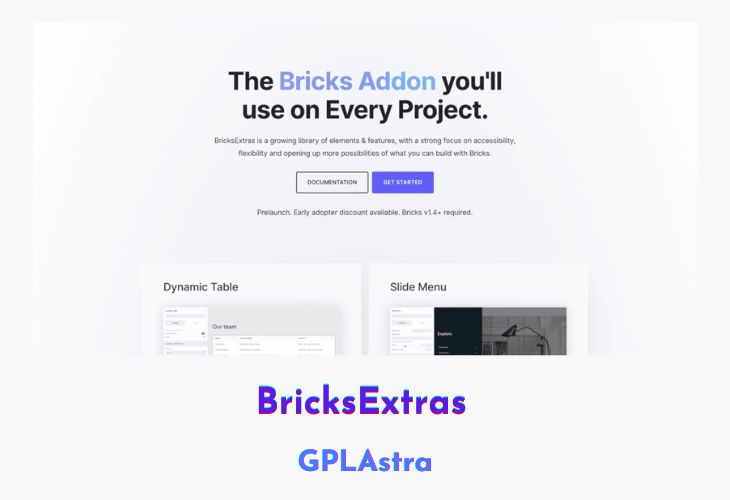
BricksExtras is a growing library of elements and features designed to enhance your website-building experience with the Bricks page builder for WordPress. With a strong focus on accessibility, flexibility, and opening up more possibilities, BricksExtras empowers you to take your creations to new heights. Whether you’re looking to add interactive effects, leverage dynamic data and query loops, or simply have more control over the design process, this plugin delivers a comprehensive solution.
BricksExtras is built with a developer-friendly approach, offering extensive documentation, JavaScript events, and functions that allow you to extend the use cases even further. Accessibility is a priority, with many elements being accessible out-of-the-box while still providing you with the flexibility to tweak and customize to match your specific needs. Additionally, BricksExtras prioritizes performance, utilizing Vue.js for lightning-fast backend rendering and minimizing structural CSS, ensuring a smooth and efficient user experience.
| Name | BricksExtras |
| Type | WordPress Plugin |
| Version | 1.6.8 |
| File Name | bricksextras |
| File Type | zip (Installable Archive) |
| File Host | mediafire.com | Mirror |
| Updated On: | 6 days ago |
Core Features of BricksExtras WordPress Plugin
- Interactive effects (tilt hover, parallax scroll, floating effect) applicable at the container level
- Dynamic data and query loops for populating element content dynamically
- Flexibility to build without restrictions or limited settings
- Developer-friendly documentation, JavaScript events, and functions
- Accessibility as a standard, with accessible elements and customization options
- Frontend and backend speed optimization (no jQuery on the frontend, Vue.js for the backend)
- Minimal structural CSS for improved performance
- Extensive documentation and video tutorials (coming soon)
- Ticketed support for assistance and guidance
What’s New (Changelog) in BricksExtras v1.6.8
= v1.6.8 ( Feb 18, 2026 ) =
* [Toast Notification] - Stable release.
* [Media Player] - Added an option to have captions enabled by default.
* [Media Player] - Added an option to have caption language auto-selected.
* [Media Player] - Added the ability to force controls to always be visible (set controls delay to -1).
* [Media Player] - Waveform bars now support Bricks v2.2's color picker.
* [Dynamic Chart] - Spacing / font sizes / aspect-ratio and label rotations now are all changeable per breakpoint.
* [Dynamic Chart] - Now supports multi-line dataset labels and x-axis labels by using br tags.
* [Header Search] - New option to display submit button next to search input.
* [Fluent Form] - Added controls for styling "button type" radio inputs.
* [Notification Bar] - Aria label on dismiss button is now customizable.
* [Social Share] - Switched to modern 'x.com/intent/post?' share URL for X.
* [WooCommerce Conditions] - Added "User has orders with status" condition.
* [WooCommerce Conditions] - Math type conditions (Cart count etc.) now support dynamic data.
* [Adjacent posts] - Fixed an issue where posts in other languages could be included in loop if sorting by menu_order when using Polylang.
* [General] - Fixed color settings being too small in builder on various elements (since Bricks v2.2).
* [General] - All BricksExtras dynamic tags are now registered through Bricks' filters rather than a custom provider.
Sales Page and Live Demo of BricksExtras WordPress Plugin
https://bricksextras.com/
Free Download BricksExtras Latest Version
⚡ Premium Access
Unlock All Premium Features
Unlimited Downloads
No Restrictions
Direct Download Links
Access to Private Content
Frequently Asked Questions (FAQs):
Here are some frequently asked questions related to BricksExtras WordPress Plugin that might help you while installing it on your WordPress site: