Elite Video Player v11.0.1 Plugin
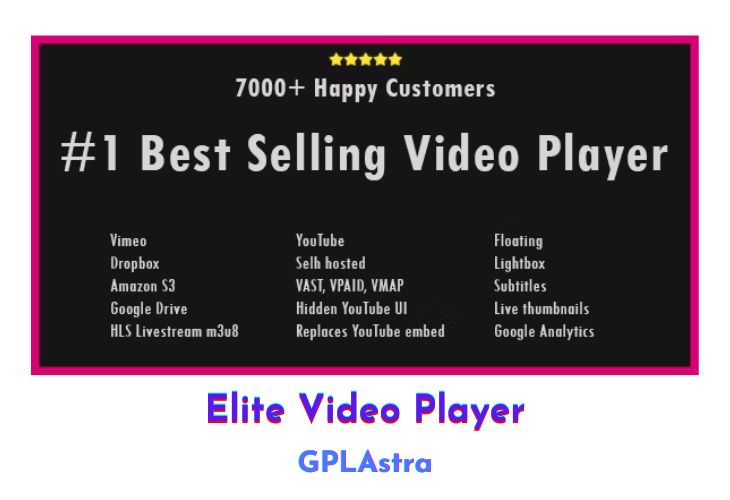
Elite Video Player is a modern, responsive, and fully customizable high-end video player for WordPress that supports advertising and compatibility with the most popular video platforms. With its sleek design and powerful features, this plugin allows you to seamlessly showcase your videos across all browsers and devices, providing an exceptional viewing experience for your audience. Whether you’re hosting videos on YouTube, Vimeo, self-hosting, using cloud storage like Google Drive or Dropbox, or streaming live with HLS m3u8, Elite Video Player has you covered.
One of the standout features of Elite Video Player is its comprehensive support for various video sources, including YouTube (single, channel, playlist), Vimeo, self-hosted videos (mp4), Google Drive videos, Dropbox videos, local videos, Amazon S3, and live streaming HLS m3u8 videos. Additionally, the plugin offers advertising capabilities with pre-roll, mid-roll, post-roll, and pop-up ads, as well as Google Analytics integration for tracking video views and engagement. Elite Video Player also boasts features like sticky mode, lightbox mode, responsive mode, fullscreen mode, deeplinking, content protection, and support for images and GIFs, making it a truly versatile and feature-rich solution.
| Name | Elite Video Player |
| Type | Plugin |
| Version | 11.0.1 |
| File Name | Elite-video-player |
| File Type | zip (Installable Archive) |
| File Host | mediafire.com | Mirror |
| Updated On: | 6 months ago |
Core Features of Elite Video Player Plugin
- Modern, responsive, and fully customizable high-end video player
- Support for advertising (pre-roll, mid-roll, post-roll, pop-up ads)
- Compatibility with popular video platforms:
- YouTube (single, channel, playlist)
- Vimeo
- Self-hosting videos (only mp4 required)
- Google Drive videos
- Dropbox videos
- Local videos
- Amazon S3
- Live Streaming HLS m3u8 videos
- YouTube 360 VR and YouTube Live Streaming support
- Mixed videos (create playlists with various video types)
- Google Analytics integration for video tracking
- Sticky mode (keeps videos visible while scrolling)
- Lightbox mode, responsive mode, fullscreen mode
- Deeplinking (access and share specific videos via URL)
- Content protection (disable right-click, hide “src” attribute)
- Support for images (jpg, png, gif) and image sliders
- Unlimited color options for customization
- Cross-browser and cross-device compatibility
- Easy installation and setup (insert shortcode)
What’s New (Changelog) in Elite Video Player v11.0.1
- m3u8 HLS stream improvements, auto reconnect when connection is lost
- option to show/hide YouTube UI
Sales Page and Live Demo of Elite Video Player Plugin
https://codecanyon.net/item/elite-video-player-wordpress-plugin/10496434
Free Download Elite Video Player Latest Version
⚡ Premium Access
Unlock All Premium Features
Unlimited Downloads
No Restrictions
Direct Download Links
Access to Private Content
Frequently Asked Questions (FAQs):
Here are some frequently asked questions related to Elite Video Player Plugin that might help you while installing it on your WordPress site:


