MotoPress Hotel Booking v5.2.3 Plugin
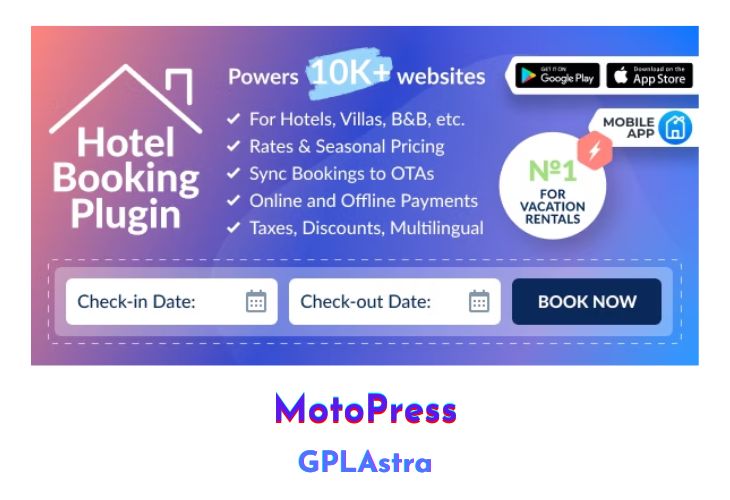
The MotoPress WordPress Hotel Booking plugin is an all-in-one property management solution designed for rental property websites. It allows you to list unlimited accommodations and services, accept direct online reservations, and synchronize bookings across various online travel agencies (OTAs) without per-booking or per-property commissions. This comprehensive plugin is suitable for running any hospitality business establishment, regardless of size, function, or cost, such as hotels, vacation rentals, apartments, hostels, and more.
The plugin offers a wide range of features, including iCal channel management for syncing with OTAs, streamlined guest experience with property presentation and search capabilities, flexible rate and inventory management options, booking and payment gateway integration, and efficient rental operations with a centralized admin bookings calendar, customizable stay requirements, and reporting tools.
| Name | MotoPress Hotel Booking |
| Type | Plugin |
| Version | 5.2.3 |
| File Name | motopress-hotel-booking |
| File Type | zip (Installable Archive) |
| File Host | mediafire.com | Mirror |
| Updated On: | 9 months ago |
Core Features of MotoPress Hotel Booking Plugin
- iCal Channel Management to synchronize availability and bookings with OTAs like Airbnb, Booking.com, TripAdvisor, HomeAway, and more
- Automatic, near real-time synchronization (sync frequency can be set to every half hour)
- Rent out unlimited categorized properties (holiday homes, hotel rooms) or single accommodations
- Fully customizable property details: description, amenities, image gallery, rates, booking system
- Display extra services and packages available for specific accommodation types
- Mobile-friendly property search form with arrival/departure dates and guest count
- Custom search fields for advanced property search (location, accommodation types, price range, etc.)
- Real-time availability calendars for individual properties
- Ability to book multiple properties in a single reservation
- Dynamic seasonal pricing based on custom periods (low/high seasons, holidays, etc.)
- Complex rates based on property facilities (non-refundable, amenities, breakfast, etc.)
- Per-person property rates with dynamic pricing based on guest count
- Length-of-stay-based pricing with discounts for longer stays
- Discount coupons with customizable conditions (amount, expiration date, min/max stay, etc.)
- Compulsory taxes and fees (accommodation taxes, service taxes, fee taxes)
- Bookable extras or free services (spa, airport transfer, childcare, etc.)
- Online payment acceptance via PayPal, 2Checkout, Braintree, Stripe, Beanstream/Bambora
- Integration with WooCommerce for additional payment gateways
- Instant or manual booking confirmation (upon payment, admin approval, or guest confirmation)
- Manual booking entry and editing of original bookings
- Centralized admin bookings calendar with color-coded statuses
- Customizable min/max stay requirements and check-in/check-out dates
- Ability to block bookings for specific properties or periods (renovations, etc.)
- Branded admin and client email notifications with customizable templates
- CSV booking report generation with filtering options
What’s New (Changelog) in MotoPress Hotel Booking v5.2.3
= 5.2.3, May 27 2025 =
* Fixed an issue with user roles that could affect new plugin installations.
* Added support for PayPal in the Hotel Booking Accommodation-Based Payments add-on.
Sales Page and Live Demo of MotoPress Hotel Booking Plugin
https://motopress.com/products/hotel-booking/
Free Download MotoPress Hotel Booking Latest Version
⚡ Premium Access
Unlock All Premium Features
Unlimited Downloads
No Restrictions
Direct Download Links
Access to Private Content
Frequently Asked Questions (FAQs):
Here are some frequently asked questions related to MotoPress Hotel Booking Plugin that might help you while installing it on your WordPress site:


