Real Media Library v4.22.67 Plugin
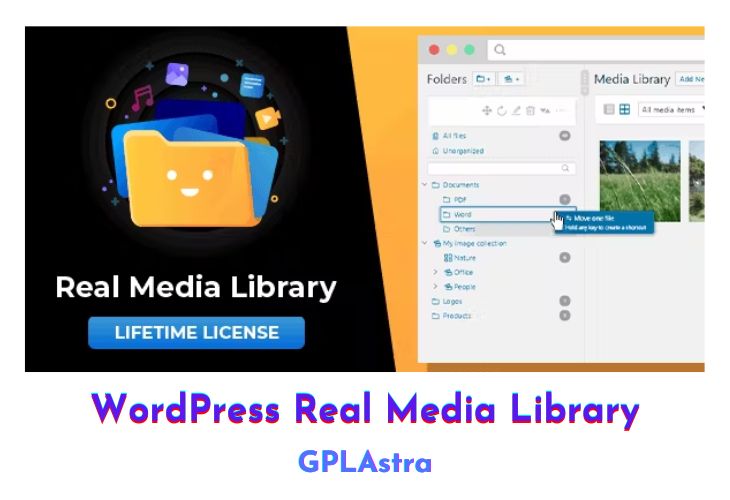
Real Media Library (RML) is a WordPress plugin, that helps to organize your media (images, videos and audio) in folders exactly like WordPress categories. You can reduce the size of your database from hundreds of megabytes to tens or perhaps even ones of megabytes.
| Name | Real Media Library |
| Type | Plugin |
| Version | 4.22.67 |
| File Name | real-media-library |
| File Type | zip (Installable Archive) |
| File Host | mediafire.com | Mirror |
| Updated On: | 3 weeks ago |
Core Features of Real Media Library Plugin
- WordPress 5.x / Gutenberg ready
- Folder for the WordPress media library
- Drag & Drop your files
- Works great on touch devices
- Create shortcuts of files in multiple folders. Shortcuts do not require physical storage space (0 kb).
- Full control over your folders in one toolbar (create, rename, delete)
- Rearrange folders by drag & drop or by criterium (e.g. name in ascending order)
- Sort folder contents by drag & drop or criteria (e.g. A-Z) automatically or once
- Bulk select folders and delete multiple folders at once
- Filter in the WordPress insert media dialogue
- Advanced media library uploader
- Upload files directly to a folder
- Create dynamic galleries from a folder with a Gutenberg block or shortcode
- Order folder contents by drag & drop or by criterion (date, name, …)
- Quickly navigate to folders with a quick folder search
- Translated into several languages
- Compatible with all major themes, page builders and many plugins
- Supports WordPress Multisite (each page has its own folder tree)
- GPDR/DSGVO: The plugin does not collect personal data without your consent!
- Import categories/folders from plugins like FileBird, WP Media Folder, Advanced Media Library, Media Library Wizard and more
What’s New (Changelog) in Real Media Library v4.22.67
v4.22.67 - (2026-02-05)
### Performance Improvements
* improve SQL queries when using together with WPML (CU-869c14un4)
<details><summary>Dependency updates @devowl-wp/utils 1.20.13</summary>
**_Purpose of dependency:_** _Utility functionality for all your WordPress plugins._
##### Bug Fixes
* compatibility with Hostinger and services could not be created (CU-869c14a9d)</details>
Sales Page and Live Demo of Real Media Library Plugin
https://codecanyon.net/item/wordpress-real-media-library-media-categories-folders/13155134
Free Download Real Media Library Latest Version
⚡ Premium Access
Unlock All Premium Features
Unlimited Downloads
No Restrictions
Direct Download Links
Access to Private Content
Frequently Asked Questions (FAQs):
Here are some frequently asked questions related to Real Media Library Plugin that might help you while installing it on your WordPress site:


