Amelia v9.1.2 WordPress Plugin
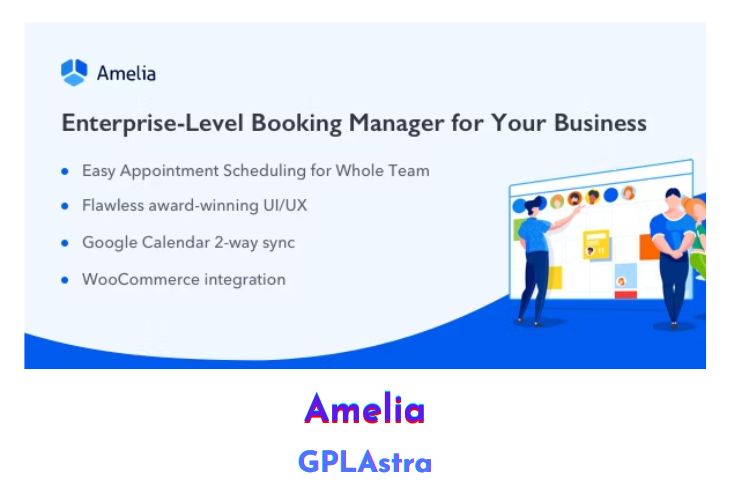
Amelia plugin is your automated booking specialist. With unique features like full appointment display, appointment reminder emails, and dynamic mobile notifications, your new bookings will go up while your no-shows will go down. Unique features to help you measure performance and make data-driven decisions include analytics tracking, heat maps, and segmented reports. Take control of your scheduling today!
| Name | Amelia |
| Type | WordPress Plugin |
| Version | 9.1.2 |
| File Name | ameliabooking |
| File Type | zip (Installable Archive) |
| File Host | mediafire.com | Mirror |
| Updated On: | 6 days ago |
Core Features of Amelia WordPress Plugin
- Search-like booking interface
- Catalog view for categories and services
- Step-By-Step Booking Wizard
- On-Site Payments Support
- PayPal Payments Support
- Stripe Payments Support
- Informative back-end dashboard
- Interactive Calendar for Scheduling
- Support for Multiple Employees
- Support for Multiple Services and Categories
- Support for Appointment Extras
- Support for Multiple Business Locations
What’s New (Changelog) in Amelia v9.1.2
v9.1.2 (18.02.2026) This update includes several bug fixes: BugFix: Fixed an issue where the import option was missing when no customers exist.
BugFix: Fixed an issue where the Customer Panel label was visible on the Step-by-step booking form when the panel was not enabled.
BugFix: Fixed an issue with booking free services when using non-default duration pricing.
BugFix: Fixed an issue where the “Notify the attendees” checkbox did not remain unchecked after saving.
BugFix: Fixed an issue where the employee badge was removed after saving the profile in the Employee Panel.
BugFix: Fixed an issue with WooCommerce metadata and description fields not auto-generating placeholders.
BugFix: Fixed an issue where only the first 10 packages were visible in the back end booking list.
Additional minor bug fixes and overall stability improvements.
Sales Page and Live Demo of Amelia WordPress Plugin
https://codecanyon.net/item/amelia-enterpriselevel-appointment-booking-wordpress-plugin/22067497
Free Download Amelia Latest Version
⚡ Premium Access
Unlock All Premium Features
Unlimited Downloads
No Restrictions
Direct Download Links
Access to Private Content
Frequently Asked Questions (FAQs):
Here are some frequently asked questions related to Amelia WordPress Plugin that might help you while installing it on your WordPress site:



Is this the developer /elite version? With api
ther’s an error in finance table , doens’t load filtering and doesn’t show any list of customers paid o others. Error 500 . Plz can you solve? Ther’s something wrong in files
New version avaible 9.2 . Plz update it