WooCommerce Export Orders v5.5.7 Plugin
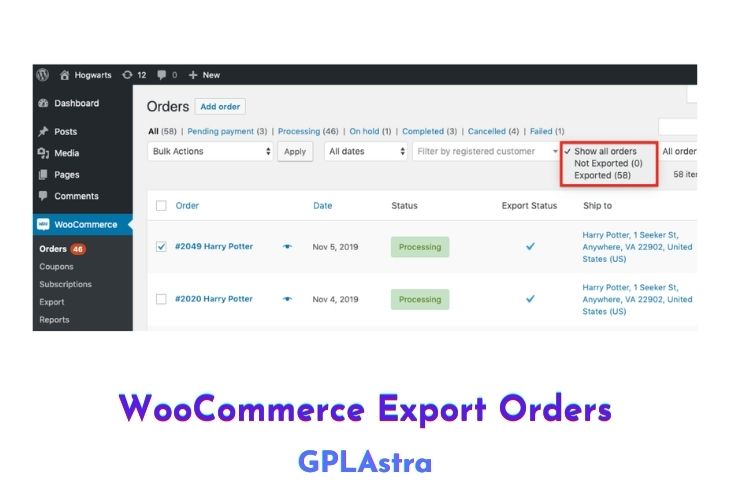
The WooCommerce Customer / Order / Coupon Export plugin is a useful tool for WooCommerce users looking to seamlessly transfer customer, order, and coupon data to external systems such as CRMs or fulfilment providers. With this plugin, you can export data in CSV or XML formats, either individually or in bulk, and even set up automated exports to be delivered via FTP, HTTP POST, or email.
Additionally, you have the option to create custom formats that include any relevant customer or order meta. Importantly, the export process runs in the background, allowing you to continue working on other tasks or even leave the site while the export is running. Overall, the WooCommerce Customer / Order / Coupon Export plugin offers a convenient and efficient way to manage and transfer important data from your WooCommerce store.
| Name | WooCommerce Export Orders |
| Type | Plugin |
| Version | 5.5.7 |
| File Name | woocommerce-customer-order-csv-export |
| File Type | zip (Installable Archive) |
| File Host | mediafire.com | Mirror |
| Updated On: | 1 week ago |
Core Features of WooCommerce Export Orders Plugin
Here is a list of features offered by the WooCommerce Customer / Order / Coupon Export plugin:
- Export customer, order, and coupon data, including custom fields, in CSV or XML formats.
- Create custom export formats to ensure that the files are formatted exactly as you need them.
- Process exports asynchronously, allowing you to work on other tasks or even leave the site while the export is running.
- Generate bulk exports on demand based on properties such as customer registration date or order status.
- Manually export and transfer customer and order data via email, FTP, or HTTP POST.
- Set up automated exports to create and send customer and order exports on a regular schedule.
- Compatible with many other plugins, including Local Pickup Plus and Checkout Add-Ons.
What’s New (Changelog) in WooCommerce Export Orders v5.5.7
2026.02.16 - v5.5.7
* Fix - Ensure XML exports prefix meta entries with `Meta-` . This was accidentally changed in the previous release.
Sales Page and Live Demo of WooCommerce Export Orders Plugin
https://woocommerce.com/products/ordercustomer-csv-export/
Free Download WooCommerce Export Orders Latest Version
⚡ Premium Access
Unlock All Premium Features
Unlimited Downloads
No Restrictions
Direct Download Links
Access to Private Content
Frequently Asked Questions (FAQs):
Here are some frequently asked questions related to WooCommerce Export Orders Plugin that might help you while installing it on your WordPress site: