WP Table Manager v4.2.2 Plugin
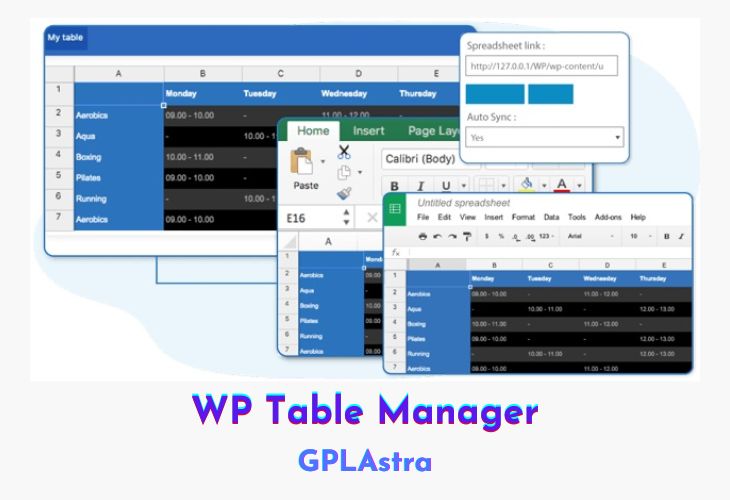
WP Table Manager is a powerful WordPress table plugin that offers a full spreadsheet interface to manage tables. With this plugin, you can create a table, pick up a theme and start editing tables right away. You’ll enjoy a set of powerful table edition tools, such as HTML cell editing, table copying, calculation, Excel and Google Sheets synchronization.
| Name | WP Table Manager |
| Type | Plugin |
| Version | 4.2.2 |
| File Name | wp-table-manager |
| File Type | zip (Installable Archive) |
| File Host | mediafire.com | Mirror |
| Updated On: | 1 month ago |
Core Features of WP Table Manager Plugin
- Save Time in Table Edition: Editing tables in WordPress can be time-consuming and tricky. WP Table Manager simplifies the process by allowing you to edit tables like in a spreadsheet, where all it takes is clicking on a cell, editing the data, and saving automatically. This saves you time and ensures that even a user mistake won’t break your table layout.
- Powerful WordPress Table Plugin: The plugin offers easy-to-use, yet advanced tools for editing tables, including visual tools for color, borders, border radius, tooltips, and more. Each cell can also be modified with the WordPress visual editor with all features available. Advanced users can use the custom CSS code edition with code mirror available in each table.
- Themes and Colors for Tables: WP Table Manager comes with 6 themes that have been built from the plugin, which means that everything is editable. For example, you can add the planning theme, change the hours with your data, and you’re done. You can even create your own themes from scratch because tables can be copied in a click. You can also create your own alternate 2 lines colors set and apply it to a selection of table cells.
- Excel Sheets Import and Export: An Excel Import & Export tool is available for each table, saving you a lot of time. You can import your spreadsheet file, create your layout, and publish it. You can import all data plus some Excel styles or only the data and preserve your table style. The compatible styles for Import/Export are Cell background color, font color, font size, borders, and Links (HTML format).
- Calculation Tools: WP Table Manager also offers powerful calculation tools that help you perform complex calculations right within your table. You can use formulas for addition, subtraction, multiplication, and division, as well as advanced functions like IF statements and VLOOKUP.
- Sortable Tables: Sorting tables is easy with WP Table Manager. You can sort tables by column, ascending or descending order, and even by multiple columns.
- Pagination: If your table has a lot of data, pagination can help make it more manageable for users. WP Table Manager supports pagination, allowing you to split your table into smaller pages.
What’s New (Changelog) in WP Table Manager v4.2.2
= 4.2.2 =
* Add : WordPress 6.9 compatibility
* Fix : Improved the shortcode display function
* Fix : Refined the table printing function
Sales Page and Live Demo of WP Table Manager Plugin
https://www.joomunited.com/wordpress-products/wp-table-manager
Free Download WP Table Manager Latest Version
⚡ Premium Access
Unlock All Premium Features
Unlimited Downloads
No Restrictions
Direct Download Links
Access to Private Content
Frequently Asked Questions (FAQs):
Here are some frequently asked questions related to WP Table Manager Plugin that might help you while installing it on your WordPress site: