Madara v2.2.4 WordPress Theme
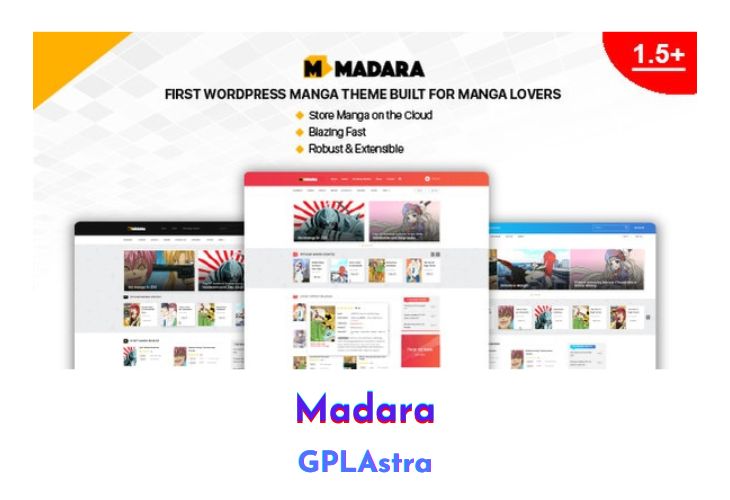
Madara is a WordPress theme designed specifically for building a Manga site. It provides users with a fast, robust, and extensible solution for creating their own Manga site on WordPress. With modern design and features such as responsive design, lazy loading, infinite pagination, SEO optimization, and RTL support, Madara offers everything users need to create an engaging and fully-functional Manga site.
| Name | Madara |
| Type | WordPress Theme |
| Version | 2.2.4 |
| File Name | Unable to Find |
| File Type | Unable to Find |
| File Host | send.now | Mirror |
| Updated On: | 8 months ago |
Core Features of Madara WordPress Theme
- Store Manga on different servers: Users can store Manga data on various servers, including Amazon S3, BlogSpot, Imgur, or on their site.
- Unlimited Chapters and Volumes: Madara allows users to create unlimited chapters and volumes, making it easy to organize their Manga content in a way that makes sense.
- Pre-defined and custom Advertisement locations: Users can choose from pre-defined advertisement locations or create custom ones to monetize their site.
- Various Shortcodes and Widgets: Madara includes a variety of shortcodes and widgets to help users customize their site and add additional functionality.
- Views Count, Star Rating, Bookmark Manga, Reading History: Madara provides a range of features to help users manage their Manga content, including view counts, star ratings, bookmarking, and reading history.
- Advanced Manga Search & Filter: Madara includes advanced search and filtering options to help users find the Manga content they’re looking for quickly and easily.
- User Settings: Madara allows users to manage their settings and preferences on the front end of the site.
- Front-end login and register: Users can log in and register directly from the front-end of the site, making it easy to manage their account.
- Manga info: author, genre, tags, rank, artist: Madara includes detailed information about each Manga, including author, genre, tags, rank, and artist.
- Manga Comment: Visitors can leave comments on each Manga, creating an interactive community around the site.
- Social Share: Users can easily share their favorite Manga content on social media platforms.
- Ajax Load images, Read 1 page or multi-pages mode: Madara includes Ajax-powered image loading and multiple reading modes, making it easy for users to read Manga on any device.
- Blog: Madara includes a blog section for users to share news and updates related to their Manga site.
- Responsive: Madara is fully responsive, ensuring that users can access their site from any device.
- RTL support: Madara includes built-in support for right to left languages, making it easy to create a Manga site in any language.
- SEO optimized: Madara is SEO-optimized, ensuring that users’ Manga content ranks well in search engines.
- Translation-ready: Madara is translation-ready, making it easy for users to create a Manga site in any language.
- Sample Data + One Click Install: Madara includes sample data and a one-click installation process, making it easy for users to get started quickly.
- Add-on Market for other Themes, Import Tools, Advanced Features plugins: Madara includes an add-on market for additional themes, import tools, and advanced features plugins.
What’s New (Changelog) in Madara v2.2.4
Version 2.2.4 - 2025.07.07
- #Update: allow to create Google Photos Album directly before uploading
- #Fix: security vulnarability
- #Fix: latest OneSignal compatibility (v3)
- #Fix: minor issues
Sales Page and Live Demo of Madara WordPress Theme
https://mangabooth.com/product/wp-manga-theme-madara/
Free Download Madara Latest Version
⚡ Premium Access
Unlock All Premium Features
Unlimited Downloads
No Restrictions
Direct Download Links
Access to Private Content
Frequently Asked Questions (FAQs):
Here are some frequently asked questions related to Madara WordPress Theme that might help you while installing it on your WordPress site: