MapSVG v8.10.0 WordPress Plugin
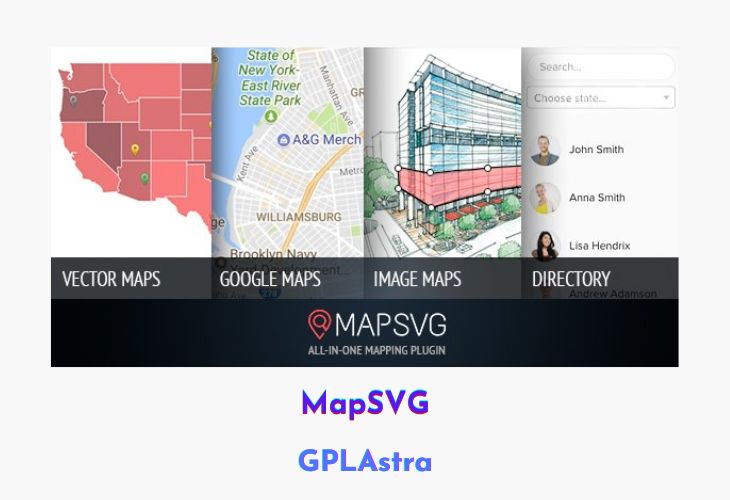
MapSVG – The Last WordPress Map Plugin You’ll Ever Need is a powerful and flexible mapping solution that lets you turn vector files or even simple JPG/PNG images into fully interactive maps. Whether you need country maps, world maps, or custom-designed layouts, MapSVG gives you complete control to create visually rich and data-driven maps directly inside WordPress. With over 100+ pre-built country and world maps included, it’s suitable for everything from business directories to complex data visualization projects.
What truly sets MapSVG apart is its advanced interactivity and Google Maps integration. You can add search, filters, and detailed information panels, making it perfect for use cases like store locator maps or location-based listings. Designers can create custom vector artwork in any vector editing software and seamlessly overlay it on Google Maps, with automatic positioning that saves time and ensures accuracy.
| Name | MapSVG |
| Type | WordPress Plugin |
| Version | 8.10.0 |
| File Name | mapsvg |
| File Type | zip (Installable Archive) |
| File Host | mediafire.com | Mirror |
| Updated On: | 2 weeks ago |
Core Features of MapSVG WordPress Plugin
- Interactive Vector Maps: Convert SVG vector files into fully interactive maps with clickable regions and actions.
- Image-to-Map Conversion: Turn JPG or PNG images into interactive maps with custom hotspots.
- 100+ Built-In Maps: Includes world maps and maps of over 100 countries ready to use.
- Advanced Search & Filters: Add search functionality and filters to help users find locations or data quickly.
- Store Locator System: Create store locator maps with distance-based search for nearby locations.
- Details View Panels: Display location or region details inside or outside the map in custom containers.
- Google Maps Integration: Overlay vector maps directly on Google Maps for enhanced location accuracy.
- Automatic Map Positioning: Align vector overlays on Google Maps automatically without manual adjustments.
- Custom Vector Artwork Support: Design maps in any vector editing software and import them easily.
- Flexible Layout Control: Place maps and detail views anywhere on your site for better UX.
What’s New (Changelog) in MapSVG v8.10.0
v8.10.0 - February 9, 2026 Features / Improvements
WP-CLI export/import script: now mapsvg adds custom wp-cli scripts for exporting and importing your maps. Examples:
Export all MapSVG database tables to SQL file:
wp mapsvg export
Export and replace current domain with a new one in the .sql file:
wp mapsvg export --toDomain=mapsvg.com
Import MapSVG data from SQL file
wp mapsvg import /path/to/file.sql
Sales Page and Live Demo of MapSVG WordPress Plugin
https://mapsvg.com/
Free Download MapSVG Latest Version
⚡ Premium Access
Unlock All Premium Features
Unlimited Downloads
No Restrictions
Direct Download Links
Access to Private Content
Frequently Asked Questions (FAQs):
Here are some frequently asked questions related to MapSVG WordPress Plugin that might help you while installing it on your WordPress site: