WooCommerce PDF Invoices By WebToffee v1.7.3 Plugin
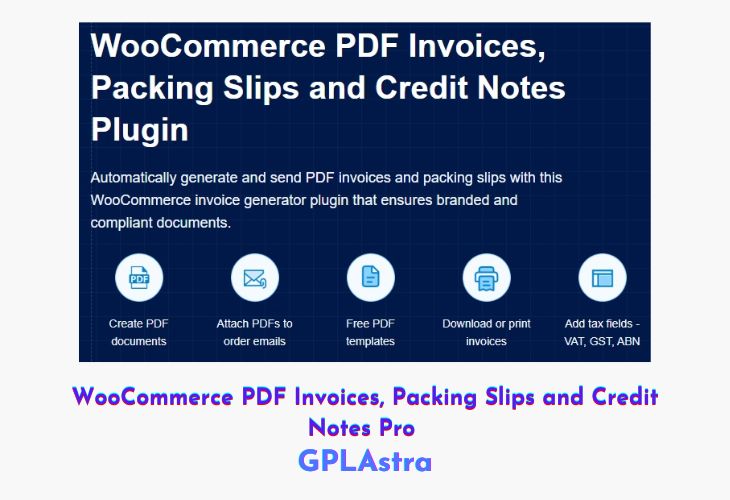
WooCommerce PDF Invoices, Packing Slips and Credit Notes Pro by WebToffee is a powerful documentation plugin designed to automate and streamline order paperwork for WooCommerce stores. It automatically generates professional PDF invoices, packing slips, and credit notes for every order, helping store owners maintain accurate and well-organized records without manual effort. With fully customizable templates, you can add your logo, business details, and preferred layout to ensure all documents stay consistent with your brand identity.
The plugin also enhances the customer experience by allowing buyers to download invoices directly from order emails or their account dashboard. Store admins can bulk print packing slips to speed up order fulfillment, while advanced options like automatic email attachments, multilingual support, and international tax compatibility make it ideal for both local and global WooCommerce stores. By automating critical documentation tasks, this plugin saves time, reduces errors, and keeps order management efficient.
| Name | WooCommerce PDF Invoices By WebToffee |
| Type | Plugin |
| Version | 1.7.3 |
| File Name | wt-woocommerce-invoice-addon |
| File Type | zip (Installable Archive) |
| File Host | mediafire.com | Mirror |
| Updated On: | 2 weeks ago |
Core Features of WooCommerce PDF Invoices By WebToffee Plugin
- Automatic PDF Generation: Instantly create invoices, packing slips, and credit notes for WooCommerce orders
- Customizable Document Templates: Personalize layouts with your logo, branding, and business information
- Customer Invoice Access: Allow customers to download invoices from emails or their account page
- Bulk Printing Support: Print multiple packing slips at once for faster order processing
- Sequential Invoice Numbering: Maintain clean and compliant invoice numbering automatically
- Multiple Tax Format Support: Handle different tax structures for regional and international sales
- Multilingual Compatibility: Generate documents suitable for global and multilingual stores
- Order Status-Based Attachments: Automatically attach invoices to emails for selected order statuses
- Theme & Plugin Compatibility: Works smoothly with most WooCommerce themes and extensions
- Automated Email Delivery: Send invoices automatically via email to customers and admins
What’s New (Changelog) in WooCommerce PDF Invoices By WebToffee v1.7.3
v1.7.3 – Released on 11 Feb 2026
[Compatibility] – Tested OK with Plugin Check plugin.
[Compatibility] – WooCommerce 10.5.1
[Compatibility] – WordPress 6.9.1
Sales Page and Live Demo of WooCommerce PDF Invoices By WebToffee Plugin
https://www.webtoffee.com/product/woocommerce-pdf-invoices-packing-slips/
Free Download WooCommerce PDF Invoices By WebToffee Latest Version
⚡ Premium Access
Unlock All Premium Features
Unlimited Downloads
No Restrictions
Direct Download Links
Access to Private Content
Frequently Asked Questions (FAQs):
Here are some frequently asked questions related to WooCommerce PDF Invoices By WebToffee Plugin that might help you while installing it on your WordPress site: