WooCommerce Customer Email Verification v2.9.1 Plugin
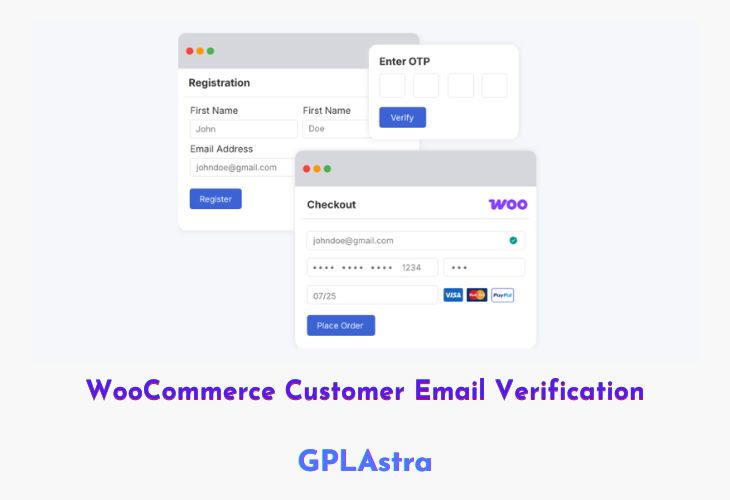
WooCommerce Customer Email Verification is a must-have plugin designed to protect your online store from spam registrations and fake orders. By requiring customers to verify their email addresses during registration or checkout, this plugin ensures that only genuine users can create accounts or complete purchases. It effectively minimizes issues like fake signups, invalid orders, and undelivered email notifications caused by mistyped email addresses. With an intuitive setup and full customization options, store owners can easily personalize the verification process to match their branding and business workflow.
This plugin offers two powerful verification modes—Registration and Checkout—allowing you to choose when and how customers should verify their emails. Whether you sell digital products, memberships, or physical goods, you can ensure that all interactions on your WooCommerce store come from verified users. The admin can easily resend verification emails, manage unverified accounts, or automatically delete them after a specified period. With real-time verification popups, customizable designs, and automated workflows, this plugin provides an efficient and secure solution for maintaining a trustworthy customer base.
| Name | WooCommerce Customer Email Verification |
| Type | Plugin |
| Version | 2.9.1 |
| File Name | customer-email-verification |
| File Type | zip (Installable Archive) |
| File Host | mediafire.com | Mirror |
| Updated On: | 2 days ago |
Core Features of WooCommerce Customer Email Verification Plugin
- Email Verification on Registration: Require users to verify their email addresses before accessing their accounts.
- Checkout Verification Workflow: Ensure guest customers confirm their emails before placing orders.
- Spam Prevention: Stop fake registrations and spam accounts with mandatory email validation.
- Avoid Fake Orders: Block fake purchases and protect your digital goods or free trials.
- Prevent Bounced Emails: Reduce undelivered notifications caused by invalid email entries.
- Customizable Verification Emails: Personalize email content and design with a live customizer.
- Interactive Verification Popup: Display a popup overlay for users to input verification codes instantly.
- Resend or Manually Verify Emails: Manage verification directly from the WordPress user admin area.
- Auto-Delete Unverified Accounts: Schedule automatic deletion of unverified users after a defined period.
- Flexible Workflow Selection: Enable verification at registration, checkout, or both as per business needs.
- Redirect Control: Choose a custom redirect page after successful verification.
- Full WooCommerce Integration: Seamlessly integrates with existing WooCommerce checkout and account pages.
What’s New (Changelog) in WooCommerce Customer Email Verification v2.9.1
2026-02-20 - v2.9.1
* Fix - Fixed 404 error caused by incorrect redirect to /my-account/email-verification/ by properly registering the email verification endpoint and improving rewrite rule handling.
* Dev - Tested with WooCommerce 10.5.2
* Dev - Tested with WordPress 6.9.1
Sales Page and Live Demo of WooCommerce Customer Email Verification Plugin
https://woocommerce.com/products/customer-email-verification/
Free Download WooCommerce Customer Email Verification Latest Version
⚡ Premium Access
Unlock All Premium Features
Unlimited Downloads
No Restrictions
Direct Download Links
Access to Private Content
Frequently Asked Questions (FAQs):
Here are some frequently asked questions related to WooCommerce Customer Email Verification Plugin that might help you while installing it on your WordPress site: