FlyingPress v5.3.2 WP Plugin
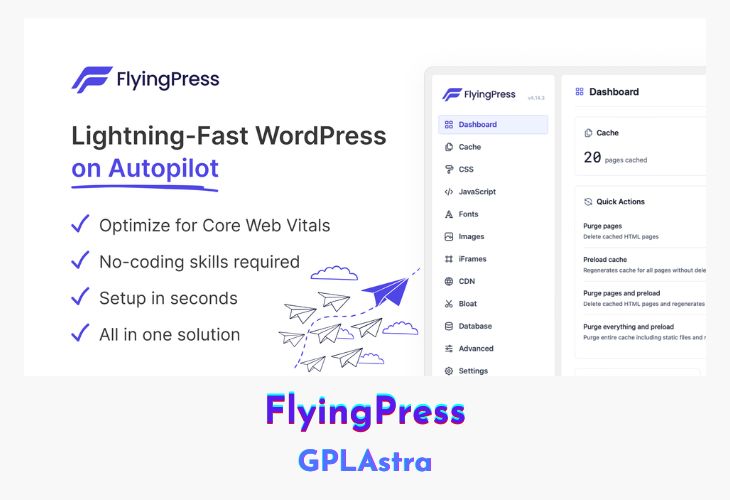
FlyingPress is a powerful yet lightweight WordPress speed optimization plugin designed to boost your website’s Core Web Vitals effortlessly. With an intuitive interface and minimal configuration, it simplifies the optimization process for both beginners and professionals. Unlike traditional caching plugins, FlyingPress is an all-in-one solution that eliminates the need for multiple performance plugins, ensuring a faster, more efficient WordPress experience. Whether you’re running a blog, business site, or WooCommerce store, FlyingPress enhances page speed, reduces load times, and improves SEO rankings with just a few clicks.
By focusing on modern browser optimizations, FlyingPress automates performance enhancements while remaining fully compatible with all major WordPress hosting providers, themes, and plugins. It minimizes bloat, optimizes critical resources, and ensures that each page is fine-tuned for Core Web Vitals, leading to better user experience and search engine visibility.
| Name | FlyingPress |
| Type | WP Plugin |
| Version | 5.3.2 |
| File Name | flying-press |
| File Type | zip (Installable Archive) |
| File Host | mediafire.com | Mirror |
| Updated On: | 3 weeks ago |
Core Features of FlyingPress WP Plugin
- Easy-to-Use Interface: Simplified step-by-step settings for seamless optimization.
- Minimal Configuration: Requires only a few settings, making it accessible to all users.
- Core Web Vitals Optimization: Implements advanced optimizations to improve loading speed, interactivity, and visual stability.
- All-in-One Performance Solution: Replaces the need for multiple speed optimization plugins.
- Wide Compatibility: Works smoothly with all major hosting providers, themes, and plugins.
What’s New (Changelog) in FlyingPress v5.3.2
= v5.3.2 – 06 February, 2026 =
- Improvement: Exclude specific images by name or keyword from being optimized
- Improvement: Lowered the auto-purge priority for ACF and WooCommerce integrations
- Improvement: Prevented purging and preloading all pages when an image is auto-optimized
- Improvement: Prevented the Image Optimizer stats API from being cached by switching it to the POST method
- Fix: Undefined array key 'filesize' in the Image Optimizer status API response
- Fix: Prevented folder URLs from being sent to the Image Optimizer
- Fix: Responsive plugin UI for better user experience
Sales Page and Live Demo of FlyingPress WP Plugin
https://flyingpress.com/
Free Download FlyingPress Latest Version
⚡ Premium Access
Unlock All Premium Features
Unlimited Downloads
No Restrictions
Direct Download Links
Access to Private Content
Frequently Asked Questions (FAQs):
Here are some frequently asked questions related to FlyingPress WP Plugin that might help you while installing it on your WordPress site: