Zion Builder Pro v3.6.8 Plugin
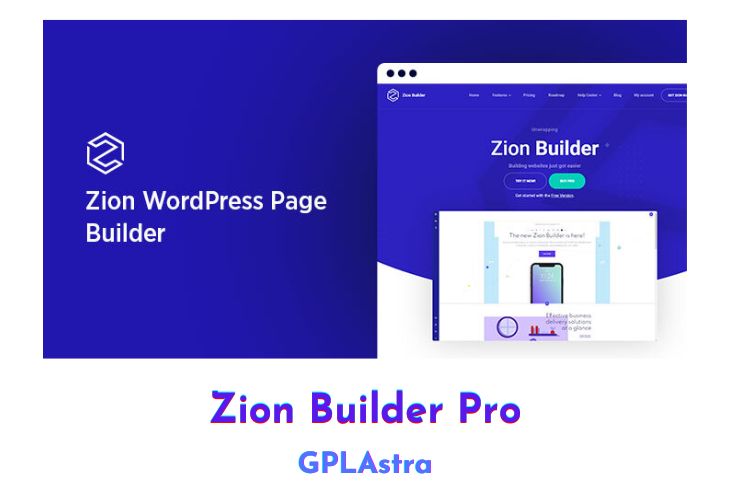
Zion Builder Pro is the fastest WordPress page builder plugin. It allows you to create beautiful pages and posts with drag-and-drop ease, without having to touch a line of code. With Zion Builder Pro, you can build custom post types, WooCommerce shops, and even entire themes – all without breaking a sweat.
| Name | Zion Builder Pro |
| Type | Plugin |
| Version | 3.6.8 |
| File Name | zionbuilder-pro |
| File Type | zip (Installable Archive) |
| File Host | mediafire.com | Mirror |
| Updated On: | 2 years ago |
Core Features of Zion Builder Pro Plugin
- 20+ Pro elements
- 50+ core elements & widgets
- Ability to upload custom fonts & icons
- Ability to use Adobe fonts
- Additional user/roles permissions
- Advanced Hovers / Child Selectors
- Developer mode (css, js + Pro styling)
- Dynamic content for various fields
- Global colours & Global gradients
- Header & Footer Builder
- Library Free Templates & Elements
- Library Pro Templates & Elements
- Mega Menu
- Modal & Slider Builder
- Monthly new Templates & Elements
- Query Repeater Functionality
- Scroll Animations
- Support & Updates
- Theme Builder
- White Label
- WooCommerce Builder
What’s New (Changelog) in Zion Builder Pro v3.6.8
August 03, 2023
Added: Ability to set custom css to css classes
Added: Element display condition to show/hide the element if the active query has additional pages
Added: option for the repeater to query based on the post author
Improved: post terms repeater field. This now shows all the taxonomies instead of just the ones related to the current post.
Improved: Repeaters performance in both the editor and rendered page
Improved: Allow wrapping text with span elements for text and heading
Fixed: element display condition "Number of posts" not working properly
Fixed: URL parameter element condition not working in certain conditions
Fixed active item not highlighted properly inside tree view if the element is also a repeater provider/consumer
Fixed nested repeaters doesn't render the proper dynamic data
Fixed mobile menu flickers on page load
Fixed background image blend mode doesn't work with gradient background inside a repeater
Fixed php notice related to dynamic data
Fixed mega menu labels not working if they contain backslashes
Fixed mega menu labels don't work with Cyrillic alphabet
Fixed mini cart doesn't display contents with latest WooCommerce version
Added: Element display condition to show/hide the element if the active query has additional pages
Added: option for the repeater to query based on the post author
Improved: post terms repeater field. This now shows all the taxonomies instead of just the ones related to the current post.
Improved: Repeaters performance in both the editor and rendered page
Improved: Allow wrapping text with span elements for text and heading
Fixed: element display condition "Number of posts" not working properly
Fixed: URL parameter element condition not working in certain conditions
Fixed active item not highlighted properly inside tree view if the element is also a repeater provider/consumer
Fixed nested repeaters doesn't render the proper dynamic data
Fixed mobile menu flickers on page load
Fixed background image blend mode doesn't work with gradient background inside a repeater
Fixed php notice related to dynamic data
Fixed mega menu labels not working if they contain backslashes
Fixed mega menu labels don't work with Cyrillic alphabet
Fixed mini cart doesn't display contents with latest WooCommerce version
Sales Page and Live Demo of Zion Builder Pro Plugin
https://zionbuilder.io/pricing/
Free Download Zion Builder Pro Latest Version
⚡ Premium Access
Unlock All Premium Features
Unlimited Downloads
No Restrictions
Direct Download Links
Access to Private Content
Frequently Asked Questions (FAQs):
Here are some frequently asked questions related to Zion Builder Pro Plugin that might help you while installing it on your WordPress site: